Manual install
For cases where the standard .exe installer isn't an option — manual .zip extraction or the legacy AutoCAD 2016 build.
Most users should use the standard installer.
AutoCAD / Civil 3D 2016
For the legacy AutoCAD/Civil 3D 2016 build. Versions 2017+ use the standard installer.
.zip install
If your system doesn't allow .exe execution, download the .zip for your CAD platform:
Installing the .zip
Extract the .zip
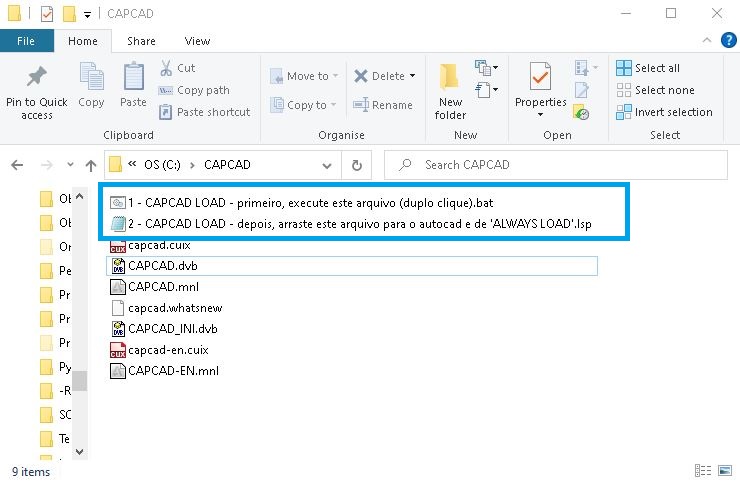
Extract the contents to any folder you have read/write access to (e.g. C:\Program Files\CAPCAD\). For ZWCAD, the path must be C:\capcad-zwcad (see the ZWCAD note below). Pay attention to the first two files:
Load CapCad
Double-click the file "1 - CAPCAD LOAD…". Authorise Windows Defender if it prompts ("More info / Run anyway"). Step not required for ZWCAD.
Then drag and drop the file "2 - CAPCAD LOAD…" into your CAD's drawing area and choose "Always Load". The CapCad ribbon will load:

These steps are only needed once. Repeat if the ribbon disappears for any reason.
Activate CapCad
Continue with the activation steps on the standard install page.
Same steps on video
Notes
ZWCAD specifics
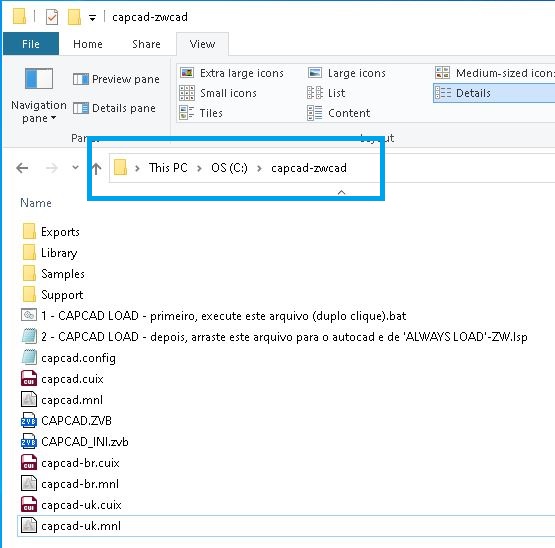
Path fixed at C:\capcad-zwcad by default (can be changed in configuration). Files should sit directly inside that folder after extraction:
General install trouble
Run "Reset AutoCAD settings to default", then download and load CapCad again.
Back to the standard installer
Most users should use the standard .exe installer.
Standard install (.exe)