| Commands | CAPCAD_TEXT_FORMAT · CAPCAD_CALCULATOR_QUICK · CAPCAD_CALCULATOR_ROAD · CAPCAD_TEMP_FOLDER |
| Shortcuts | none |
| Ribbon | CAPCAD_TEXT_FORMAT: CapCad tab › CAD Utilities panel › Draw & Modify split button › Text Editor & Numerator. CAPCAD_CALCULATOR_QUICK and CAPCAD_TEMP_FOLDER: the same panel's Tools split button. CAPCAD_CALCULATOR_ROAD has no button on the English CapCad tab — type the command |
| Category | CAD Utils: Text |
| Forms | TextFormatForm (Text Formating), QuickCalculatorForm (QuickCalculator) and ViariaCalcForm (Road calculations) — all three modeless and single-instance: running the command again brings the form already open to the front. CAPCAD_TEMP_FOLDER has no form |
| Hosts | CAPCAD_TEMP_FOLDER: AutoCAD, BricsCAD, GstarCAD, ZWCAD and ARES Commander. The other three: AutoCAD only (on ARES Commander they register but report themselves as coming soon) |
| Also opened by | the LRV button in Road calculations calls the speed-reduction-line command |
Replace, cut, insert and number text across hundreds of entities, seeing the result before you apply it. The preview field runs exactly the transformation that will be written into the drawing — what you read is what will happen.
- Text, mtext and attribute alike. The same operation reaches the content of plain texts, of mtexts, or of an attribute picked by name inside every block in the selection.
- Attribute names come from the block. A button reads the tags off a block in the drawing and offers them in the list, instead of you typing them.
- Numbering by sweep. Number a selection following one of four sweeps (up or down, rightwards or leftwards), with a start value, an increment and a leading-zero format.
- Numbering per layer. Tick a box and each layer restarts its count — one sequence per layer, in a single pass.
- A calculator that measures. The quick calculator evaluates expressions with functions and constants, and has two buttons that go into the drawing to fetch a distance or an angle.
- The road-design sums in one place. Chainage, grades, clear zone, alignment markers and conventional sign areas in a single window.
CAPCAD_TEXT_FORMAT — text editor and numberer
The command opens a form with four decisions: what to add, which action to run, on which kind of entity and, when the mode is numbering, in what order. The Select button asks for the selection in the drawing and applies.
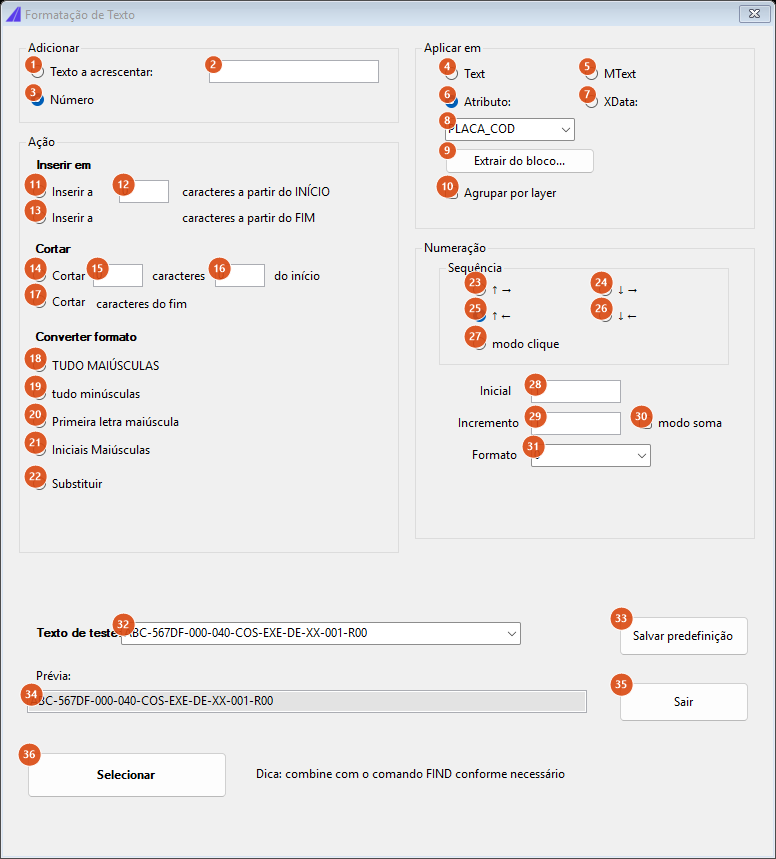
Initial state: the "Number" option (3) selected, so the "Numbering" frame is visible. This capture is of a Portuguese session — the numbering is the same in both editions, and the tables below give the English captions.
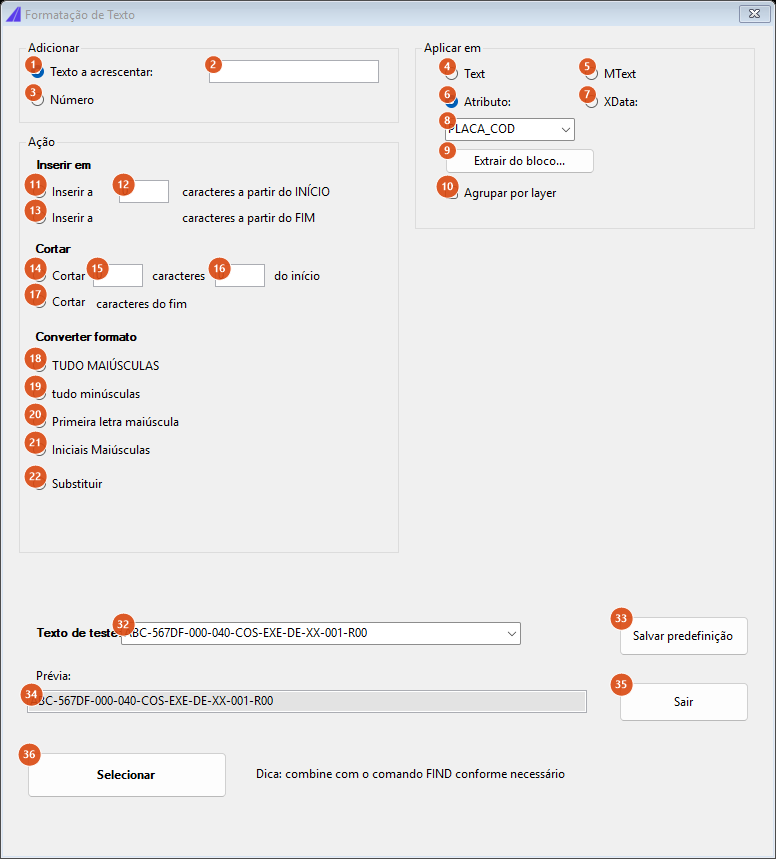
With "Text to be added" (1) selected, the "Numbering" frame disappears: the action now works on the text typed into 2.
The Add frame
| # | Control | What it does |
|---|---|---|
| 1 | Text to be added: | Text mode. The action chosen in the Action frame uses the content of 2. Selecting this option hides the Numbering frame (23 to 31). |
| 2 | text box | The text that will be inserted, or that will replace the content. |
| 3 | Number | Numbering mode (the default). The selection receives a numeric sequence instead of a text transformation. In this mode the Action frame's options are not applied. |
The Action frame
Only one of these can be active. The preview (34) shows what each one does to the test text (32).
| # | Control | What it does |
|---|---|---|
| 11 | Insert to N characters from START | Inserts the text of 2 counting N characters from the beginning. |
| 12 | N box | The character count for options 11 and 13. |
| 13 | Insert to N characters from END | The same counting from the end. |
| 14 | Cut N characters, M from start | Removes N characters (15) while keeping the first M (16). |
| 15, 16 | N and M boxes | The two numbers for options 14 and 17. |
| 17 | Cut N characters from end | Removes N characters (15) from the end, keeping the last M (16). |
| 18 | ALL CAPS | Uppercases. Accented letters are not converted: only a..z become A..Z. |
| 19 | all small | Lowercases, with the same limitation. |
| 20 | Sentence case | Only the first character becomes uppercase; the rest is left as it was. |
| 21 | Title Case | Each word capitalised and the rest of the word lowercased. |
| 22 | Substitute | Replaces the whole content with the text of 2. |
The Affect frame
| # | Control | What it does |
|---|---|---|
| 4 | Text | Acts on the content of the selection's plain texts (TEXT). |
| 5 | MText | Acts on the content of the mtexts. |
| 6 | Attribute: (default) | Acts on the attribute whose name is in 8, inside the selection's blocks. |
| 7 | XData: | Not available in this version: applying it pops a box saying "Not ported yet: XData mode." |
| 8 | attribute list | The attribute's name (tag). It comes filled in with PLACA_COD; it can be typed or chosen from the list 9 builds. |
| 9 | Extract from block... | Hides the form, asks for a block in the drawing and loads all of its attribute tags into 8, selecting the first. |
| 10 | Group by layer | Affects numbering only: each layer in the selection gets its own sequence, starting from the initial value. |
The Numbering frame
Visible only in Number mode (3).
| # | Control | What it does |
|---|---|---|
| 23 to 26 | ↑ →, ↓ →, ↑ ←, ↓ ← | The sweep. The vertical arrow is the direction in which the rows are walked (↑ bottom to top, ↓ top to bottom); the horizontal one, the order within each row (→ left to right). The default is ↑ ← (25). |
| 27 | click mode | Not available in this version: numbering by clicking one by one warns "Not ported yet: click-mode numbering." |
| 28 | Initial | The first number of the sequence. Default 1. |
| 29 | Increment | How much to add per item. Default 1. |
| 30 | sum mode | In this version it produces the same arithmetic progression as without it. |
| 31 | Format | The number's format: 0, 00, 000 or 0000 — how many digits, with leading zeros. |
With Initial 10, Increment 5 and Format 000, five entities get 010, 015, 020, 025, 030.
The footer
| # | Control | What it does |
|---|---|---|
| 32 | Test text: | The text the preview is computed on. It comes with a sample project code; type your own. |
| 33 | Save preset | Not available in this version: warns "Not ported yet: presets." |
| 34 | Preview: | The result of the chosen action applied to the test text, recomputed on every keystroke. |
| 35 | Exit | Closes the form. |
| 36 | Select | Hides the form, asks for the selection and applies. With no action chosen and outside numbering mode, it warns that the data are invalid. |
Below the button sits the hint "Tip: combine it with FIND command as needed" — the CAD's FIND finds and selects; this command transforms.
How the options combine
The table below came out of the command itself, run on the test text the form ships with.
Input: ABC-567DF-000-040-COS-EXE-DE-XX-001-R00
| Action | Result |
|---|---|
| Insert to 3 characters from START, text "X" | R00X-567DF-000-040-COS-EXE-DE-XX-001-R00 |
| Insert to 3 characters from END, text "X" | -567DF-000-040-COS-EXE-DE-XX-001-R00XR00 |
| Cut 4 characters, 3 from start | ABCDF-000-040-COS-EXE-DE-XX-001-R00 |
| Cut 4 characters from end, keeping 3 | ABC-567DF-000-040-COS-EXE-DE-XX-R00 |
| ALL CAPS | ABC-567DF-000-040-COS-EXE-DE-XX-001-R00 |
| all small | abc-567df-000-040-cos-exe-de-xx-001-r00 |
| Sentence case | ABC-567DF-000-040-COS-EXE-DE-XX-001-R00 |
| Title Case | Abc-567Df-000-040-Cos-Exe-De-Xx-001-R00 |
| Substitute with "NOVO" | NOVO |
Look at the first two rows: the insert options do not do what the caption suggests. Instead of splitting the text at the position asked for and splicing the addition in, they repeat the tail of the text on both sides of the insertion: inserting X at 3 gives R00X-567DF…. The preview shows exactly what will be written — hence the standing instruction: read the preview before clicking Select.
CAPCAD_CALCULATOR_QUICK — quick calculator
A small modeless window with an Expression field and a Result field, recomputed on every keystroke. An invalid expression leaves the result blank, with no message.
What it accepts:
- The usual operators, with
*for multiplication. - The constants
Pi,eandans— the last of these being the last valid result, which lets you chain sums. - The functions
sin,cos,tan,atan,abs,sqrt,log,ln,exp,round,min,maxandpow. Trigonometry works in degrees.
Two buttons go into the drawing:
| Button | What it does |
|---|---|
| ℓ | Asks for a base point (Base point...) and then drags a distance from it (Distance...). The measured value appears in a box, to three decimals, for you to copy. |
| ∠ | Asks for a base point (Angle base point...) and a direction (Angle direction...), and shows the angle in degrees, to three decimals. |
The Show more options link expands the window and reveals the help (operators, constants and functions) and the Const field, where you declare your own constants in the form name = value, several at a time separated by ; or by line breaks — for example x = 5; y = 2. The link then reads Hide options and the window goes back to its small size.
CAPCAD_CALCULATOR_ROAD — road calculations
A modeless window with eleven tabs, each solving one recurring design sum. Every field recomputes on each keystroke.
| Tab | What it solves |
|---|---|
| Chainage | Converts between length in metres, a formatted kilometre and a 20 m station, in both directions. The Length (m) / Station 20 m option says which one you are typing; the Prefix box controls the station prefix; the Copy button puts the numeric value on the clipboard. |
| Grade/angles | An angle in degrees, with its equivalent in radians and as a percentage grade. |
| Dictionary | An Open button — not available in this version. |
| Clear zone | The clear zone from the speed and the daily traffic volume; and, beside it, the Kcz factor from the speed and the radius. |
| LRV | The LRV button opens the speed-reduction-lines command. |
| Cadences | Not available in this version: the tab carries the note "Depends on the Criteria engine — not ported yet." |
| Abbreviations | The Abbreviations button opens a fixed list of signage abbreviations in a text window. The list shipped today is country-specific and is set out on the Portuguese edition of this page. |
| Sight distance | A table of minimum sight distance against posted speed, with the source reference printed beside it. The table shipped today is country-specific — see the Portuguese edition. |
| MA | Alignment markers: from the radius, the count by two different rules; give the curve length as well and it adds the adjusted spacing, the rounded spacing and the final marker count under each rule. The see table link opens the reference table. Both rules are country-specific — see the Portuguese edition. |
| Delineators on guardrail | The Select button hides the window, asks for the guardrail (a curve) in the drawing and returns the delineator count. |
| Conventional sign areas | Converts a conventional sign's dimension into an area, choosing between L=1.00 and Ø=1.00, with the Area of the bounding rectangle box. |
There is also a Batch conversions... button that opens CapCad's public batch-conversion spreadsheet in the browser.
CAPCAD_TEMP_FOLDER — open the temporary folder
Opens, in File Explorer, the folder pointed at by the Windows TEMP environment variable. That is where the session's temporary files live. The command opens nothing, and says nothing, if the variable is not set or the folder does not exist.
Remembered between sessions
Nothing is written to the preferences by these commands. What persists is the state of the windows themselves while the CAD stays open: because all three forms are modeless and single-instance, everything you typed is still there when the command is run again.
Notes
- The "Insert to … characters" options do not insert at the position asked for. See the table under How the options combine: the result repeats the tail of the text instead of keeping the head. The preview shows exactly what will be written.
- Three controls on the text form are not available in this version: XData (7), click mode (27) and Save preset (33). Each warns when used.
- The sum mode box (30) does not change the result in this version — the sequence is the same arithmetic progression. Check in the drawing before relying on it.
- Upper- and lowercasing ignore accents. Only unaccented letters are converted, so an accented vowel keeps its case under ALL CAPS.
- Part of the quick calculator's help is not translated. The constants and functions labels revealed by Show more options carry Portuguese wording in every language, and the measured values appear in a box titled "Cap".
- The temporary-folder command opens the Windows
TEMPfolder, which may not be the folder the CAD is configured to use for its autosave files (.sv$). CAPCAD_CALCULATOR_ROADhas no ribbon button on the English CapCad tab. It is reachable only by typing the command name.