| Commands | CAPCAD_SIGN_SWAP and CAPCAD_SIGN_SWAP_MULTI (swap) · CAPCAD_SIGN_SUBSTITUTE and CAPCAD_SIGN_SUBSTITUTE_MULTI (replace) |
| Shortcuts | TRO (swap) · SUB (replace). The MULTI variants have no shortcut |
| Ribbon | no button of their own. Go through CapCad tab › Sinalização Vertical panel › Vertical Ações, Actions tab: the Swap, Replace individual and Replace multiple (with the same) buttons |
| Category | Vertical (all four) |
| Form | none: all four ask for everything on the command line |
| Hosts | AutoCAD. In ARES Commander all four exist but answer "is not yet available in ARES (coming soon)"; in BricsCAD, GstarCAD and ZWCAD they are not available in this version |
| Also opened by | the Swap sign for button on the Swap tab of Insert Vertical, which fires CAPCAD_SIGN_SWAP or CAPCAD_SIGN_SWAP_MULTI depending on the Selection / All references option |
Two different questions, two different commands: "which sign is this?" and "what is the project doing with this sign?". Swapping the block by hand fixes the drawing and loses the project: code, area, dimensions, layer and attributes all keep telling the old story.
- A swap is not one block replaced by another. The old sign is erased and the new one is inserted the same way as in Insert Vertical, at the same point and the same rotation, with code, area, dimensions and layer recomputed from scratch.
- The project action survives. A sign marked keep is still keep after the swap; only the code changed.
- Replace records the whole decision. The new sign goes in as insert and the existing one stays in the drawing as remove, just above or below it, joined by a line — which is exactly what the quantity take-off needs to see.
- No attribute rework. In a replacement, the attributes you filled in by hand travel to the new sign; only the ones the new sign has to derive for itself are recomputed.
- In bulk. Both families have a multiple variant: a whole selection swapped for the same code, or a whole selection replaced by itself.
- The sign stays the same sign to CapCad. Scale, dynamic block properties and the group id (CapGroup) travel with it, so saved selections still find it.
What it does
Both families start from a sign that is already in the drawing and produce different results.
Swap (TRO) answers "this sign has the wrong code". The command photographs the existing block — insertion point, rotation, scale, attributes, dynamic properties and the CapGroup GUID — erases the sign, and runs the full insertion (as in Insert Vertical) at the same point with the new code. At the end there is one sign.
Replace (SUB) answers "this sign is going out and another one is going in its place". The command swaps the sign for the new code (same mechanism) but forces the insert action, then reinserts the old sign beside it — just above or just below, on the same support — with the remove action and the removal graphic style, the two joined by a connecting line. At the end there are two signs: the one coming in and the one going out.
The difference matters for the quantities: a swap creates and removes nothing, it only corrects the code; a replacement produces one sign to install and one sign to remove.
What a swap keeps and what it recomputes
| Kept from the old block | Recomputed by the insertion |
|---|---|
| Insertion point (X, Y) | Sign code and composite code |
| Rotation | Area and dimensions |
| Scale (a value above 999 is divided by 1000, for scales stored in millimetres) | Layer, from the action |
| Dynamic block properties (those the new definition also has; the rest are ignored without error) | Graphic style (grey, X, colour) from the project style |
The CapGroup GUID, so CAPCAD_SELECT_GROUP still finds the sign |
The new sign's default attributes |
| The EXTRA attribute | |
| The chainage, read off the old block |
The chainage is read differently depending on the project paradigm: one country paradigm reads a station attribute, another reads the km attribute and multiplies it by 1000, and every other style reads the km attribute as it stands.
The action a swap carries over
Both swap commands keep the existing action. The rule is:
| Situation read on the old sign | Action of the new sign |
|---|---|
| Keep | Keep |
| Remove | Remove |
| Replace | Replace |
| Anything else (insert included) | Insert |
How the command finds the situation: in every style except one country-specific paradigm, it is read from the sign's layer (ROAD_SIGN_KEEP, ROAD_SIGN_REMOVE, …). In that one paradigm the command reads the action attribute first and falls back to the layer only when the attributes are empty. A sign on the right layer but with a vague attribute, or the other way round, can therefore come out of a swap with a different action than you expected — worth checking with Vertical Tools before swapping in bulk.
What a replacement does, step by step
- Reads every attribute of the existing sign except the ones the new sign has to derive: the code, the area, the two dimension tags,
AREA, the composite code and the two action tags. - Swaps the sign for the new code at the same point, always with the insert action (a replacement never inherits the old action).
- Writes the attributes saved in step 1 back onto the new sign.
- Under the country paradigm that stores the action in attributes, also stamps the long-form action attribute and a
SOLUÇÃOattribute with the valueSUBSTITUIR. - Reinserts the old sign as the assembly's second sign, with the remove situation, inheriting the same attributes, and draws the connecting line between the two (see Sign assemblies for the assembly geometry).
- Restyles the old sign: removal layer and the graphic style the project style defines for REMOVE. If the style defines none, the sign keeps its normal appearance and nothing breaks.
The urban exception. If the project style is an urban one and the new code equals the old one (compared with the style suffixes stripped, such as -OBRA or -GrayShaded), the command stops at step 4: there is only one sign, with its action attribute stamped SUBST. There is no second sign and no line.
The connecting line. Under the attribute-based paradigm the line goes to the vertical-signing replacement layer; in every other style it goes to the old sign's action layer, that is, the removal layer.
Workflow
The prompts and the result lines of all four commands are written in Portuguese whatever the interface language; only the "The selected entity is not a sign." rejection is translated. They are quoted below in Portuguese, with the English meaning beside them.
Swap one sign (TRO)
- Run
TRO(orCAPCAD_SIGN_SWAP). - Answer Placa para substituir por: (sign to swap for) with the new code. An empty Enter cancels.
- Answer Selecione a placa: (select the sign) by clicking the sign. Only blocks are accepted; if the block you click is not a sign, the command answers "The selected entity is not a sign." and ends.
- The command line confirms: 1 placa trocada.
Swap several signs for the same code (CAPCAD_SIGN_SWAP_MULTI)
- Run
CAPCAD_SIGN_SWAP_MULTI. The code comes first, before the selection. - Select the signs. Entities that are not signs are simply ignored.
- The command line reports how many were swapped.
Replace one sign (SUB)
- Run
SUB(orCAPCAD_SIGN_SUBSTITUTE). - Answer Código para substituir por ou <Enter> para mesma placa: (code to replace with, or Enter for the same sign). Type the new code, or press Enter on an empty prompt to replace the sign with itself — the "the existing sign goes out and an identical one goes in" case.
- Click the sign.
- The command line answers 1 placa substituída or Nada substituído.
Replace several signs with themselves (CAPCAD_SIGN_SUBSTITUTE_MULTI)
- Run
CAPCAD_SIGN_SUBSTITUTE_MULTI. This command does not ask for a code: every sign in the selection is replaced by itself. That is what the "Replace multiple (with the same)" caption on the form means. - Select the signs. Non-signs are ignored.
- The command line reports how many were replaced.
How the options combine
The two figures below were produced by running the commands' own engines on a sample sign 4 units high.
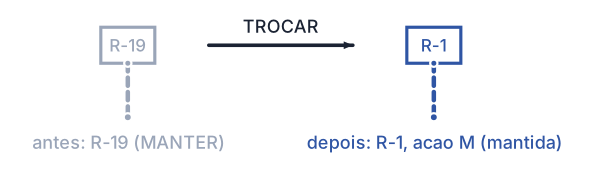
Swap: the old sign is erased and the new one goes in at the same point and the same rotation. The sign was on a keep layer, so the new one comes out as keep too.
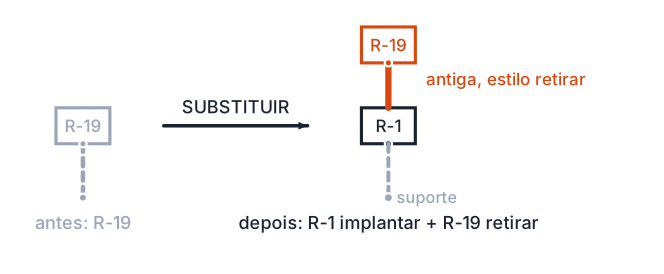
Replace: the new sign takes the original point with the insert action; the old one comes back into the drawing as the assembly's second sign, with the remove situation and the removal graphic style, joined to the new one by the connecting line. Which side (above or below) is worked out from where the support is.
Remembered between sessions
Nothing. None of the four commands stores a preference: the code is asked for on every run and everything else comes from the sign you click and from the project style.
Notes
- On a profile whose attribute tags are the English
SIGN_…family, a replacement writes the old sign's area, dimensions and action attribute back onto the new sign. Check those four attributes after a replacement, or fix them with Vertical Tools. - A swap erases and reinserts. The new sign is a new entity with a new handle. Anything holding the old handle (an already-exported report, say) stops matching; the CapGroup selection keeps working because the GUID travels with it.
- One swap is one undo step. In bulk, each sign is a step —
Uundoes only the last one. - The code box on the Insert Vertical Swap tab is not used by the command. The Swap sign for button only fires
CAPCAD_SIGN_SWAP(orCAPCAD_SIGN_SWAP_MULTIwhen All references is on); the code is still asked for on the command line. The "?" beside the button opens no help text. - What counts as a sign. A block is treated as a sign only when it has attributes and one of them is
SIGN_CODE,SENAL_COD,CODIGOPLACA,PLACA_CODorCODIGO. Blocks namedINFOandDEF_TERMINAL_IMPare never signs. - Check the support after a swap. All four commands erase and reinsert the sign only; the old support stays where it was. Because the reinsertion works like a new insertion, it also draws a new support at the same point — worth running Vertical Tools after a bulk swap to check the sign–support relation and delete duplicates.
- Style suffixes are ignored in the comparison. When deciding whether the new code is "the same" as the old one, the replacement drops suffixes such as
-Normal,-GrayShaded,-XShaped,-OBRAand-LIMA. - To change only the action, do not swap the sign. The
IMP,MAN,REMandRMJcommands (Sign actions) do that without erasing or reinserting anything.