| Command | CAPCAD_PDF_PUBLISH |
| Shortcut | none |
| Ribbon | CapCad tab › Manage panel › Output group › PDF Publish |
| Category | Manage: Tools |
| Forms | PdfPublishForm — "CapCad Publish", modeless, three tabs; and PdfPublishPreviewForm — "CapCad Publish — sheets to publish", the check list that opens before every run |
| Hosts | AutoCAD. Not available in this version on ARES Commander (running it shows a notice saying so) |
| Also opened by | none |
Publishes a whole set of sheets at once, with each file already named after the sheet number — and shows you the list before anything is written. The CAD's own PUBLISH publishes layouts; here the unit is the sheet, and the file name comes out of the title block.
- The name comes from the drawing. The key attribute of the title block (
FOLHA,FORM_NUMERO, whichever you choose) becomes the file name, with no renaming by hand afterwards. - A compulsory check before the run. A list shows every sheet, the file it will produce, the format, the orientation and whether the file already exists. You can clear sheets or tick just one format.
- Repeated names no longer overwrite each other. Two sheets that resolve to the same name get
-2,-3suffixes, and the command tells you which ones changed. - A single PDF when you want one. Every sheet becomes a page of one file, in tab order, even with mixed formats.
- The format comes from the frame itself. The block's width on paper decides between A4, A3, A2 and A1 — or you force the format.
- Folder and plot style already sorted. The output folder is derived from the dwg, and CapCad's plot-style folder is registered with the CAD before every run.
What it does
The command walks the drawing's title-block references, builds a plot plan for each — printer, paper, orientation, window, plot style and output path — shows the list for checking and then plots, file by file or everything into one PDF.
Each sheet is an attributed block — normally the title block that the Sheet Set inserts into the layouts. The plot window is the bounding box of the block's definition under the reference's position, ignoring hatches, texts and attributes; that is what makes the frame drawn inside the block define the printed area, rather than the text that spills out of it. The file name is the value of the key attribute in that block.
There are two ways of walking the drawing: Same layout (you select the title blocks in the current layout) and Multiple layouts (the command walks every layout of the drawing, in tab order).
The Util tab is a different thing: it produces a PNG of what is visible in model space. The Variables tab sets the four system variables that usually spoil a print.
Workflow
- Save the drawing. The command requires a saved dwg — the output folder is derived from it.
- Run
CAPCAD_PDF_PUBLISH. The form opens beside the drawing. - Choose the Key attribute (1) — or click Extract block attributes... (2) and pick a title block in the drawing to load its tags.
- Choose the CTB (3), the Destination folder (5 or 6) and the Output format (7 or 8).
- Choose the Mode (15 or 16) and, if you want a single file, tick Single PDF (21).
- Click the run button (22). In Same layout it asks you to select the title blocks; in Multiple layouts it sweeps the drawing straight away.
- The check list opens. Check it, clear what is not going out, and click Publish.
- At the end the command says how many sheets came out and offers to open the folder.
The form
The numbers below are the same in every capture of the main form. The check window has its own numbering, given in its own section.
The screenshots are of a Portuguese session. The captures below show the Portuguese captions; the numbering is the same one this page uses, and the tables quote the English captions the software shows in an English session.
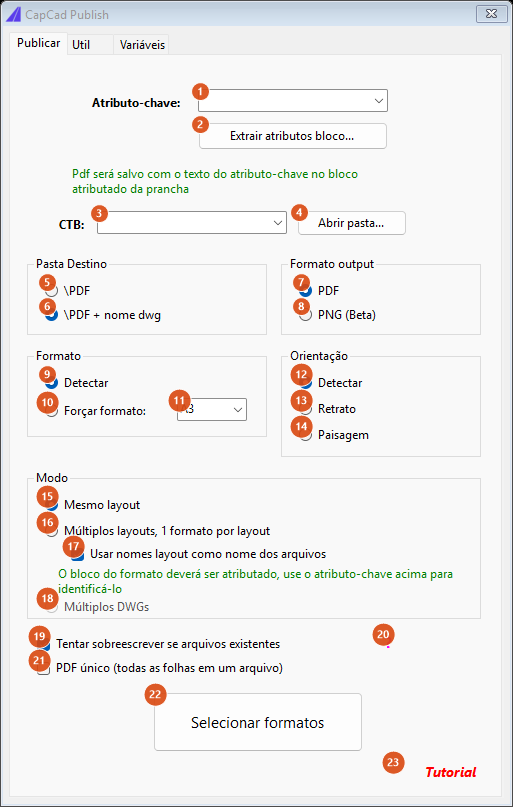
"Publish" tab: everything that decides what is published, under what name and where.
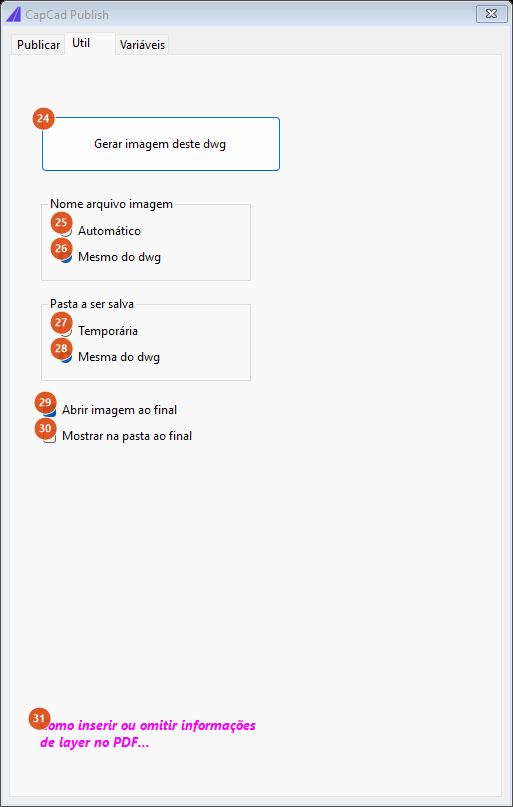
"Util" tab: an image capture of model space.
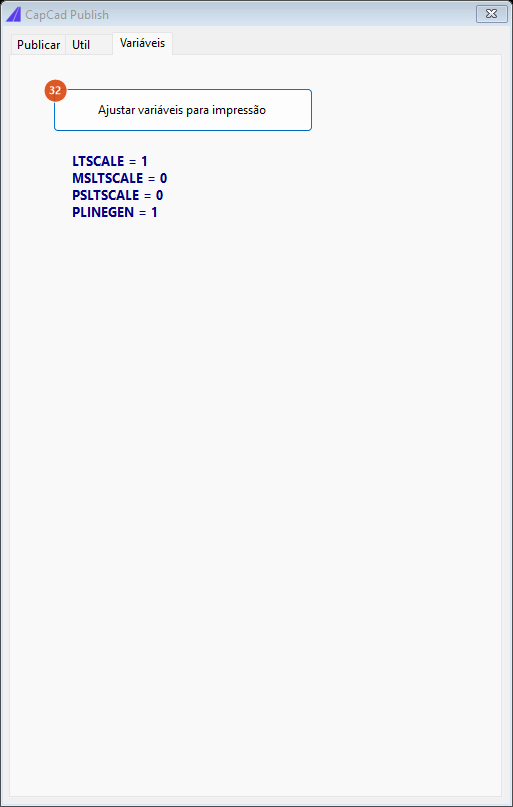
"Variables" tab: the four printing variables.
Key attribute and plot style
| # | Control | What it does |
|---|---|---|
| 1 | Key attribute: | The tag of the attribute whose value names the file. The list ships with FOLHA, PRANCHA, CODIGO, NUMERO, FORM_FOLHA, FORM_PRANCHA, FORM_CODIGO and FORM_NUMERO, and accepts typed text. Left empty, the command refuses the run with "Atributo-chave não pode ser vazio". A block that does not have that tag is skipped. |
| 2 | Extract block attributes... | The form hides, you pick an attributed block in the drawing and list 1 is replaced by its tags. If both FOLHA and FORM_NUMERO are there, the command picks FORM_NUMERO. |
| 3 | CTB | The plot style. The list holds <None> and the .ctb files in CapCad's support folder; the default is CAPCAD.ctb. |
| 4 | Open folder... | Opens CapCad's CTB folder in Explorer, so you can add or edit a plot style. |
Before every run the command adds CapCad's support folders to the CAD's plot-style path, so the chosen CTB can be resolved.
Destination folder and output format
| # | Control | What it does |
|---|---|---|
| 5 | The files go into a PDF (or PNG) folder inside the dwg's folder. |
|
| 6 | \PDF + dwg name | The same folder with the dwg's name appended: PDF-<dwg name>. It only applies when running in paper space; in model space the suffix is ignored. |
| 7 | PDF output, through the DWG To PDF.pc3 printer. |
|
| 8 | PNG (Beta) | PNG output, through the PublishToWeb PNG.pc3 printer, on a fixed paper of 1055 × 746 pixels. |
| 19 | Try to overwrite existing files | Before plotting, deletes the file of the same name. Cleared, the old file stays and the plot runs anyway. |
| 21 | Single PDF (every sheet in one file) | Every sheet becomes a page of one PDF, named after the dwg, in the output folder. The order is tab order in Multiple layouts and selection order in Same layout. It is disabled — and cleared — when the output is PNG. |
Format and orientation
| # | Control | What it does |
|---|---|---|
| 9 | Detect | The paper format comes from the width of the frame on paper, through the ladder in the figure below. |
| 10 | Force format: | Uses the format chosen in 11 for every sheet. |
| 11 | format | A0, A1L, A1, A2, A3 or A4. A1L is CapCad's "long A1" (1050 × 594 mm): it is a custom media and only works if the .pc3 has it; without it, the sheet is skipped with a warning on the command line. A0 and A1L only arrive this way — automatic detection never produces them. |
| 12 | Detect (orientation) | Landscape, except when the frame is taller than it is wide. |
| 13, 14 | Portrait, Landscape | Force the orientation on every sheet. |
Mode
| # | Control | What it does |
|---|---|---|
| 15 | Same layout | You select the title blocks; they must all be in the current layout. Button 22 is then captioned Selecionar formatos. |
| 16 | Multiple layouts, 1 format per layout | The command walks every layout of the drawing, in tab order (not alphabetically), and publishes every title block it finds. Button 22 is then captioned Processar layouts. |
| 17 | Use the layout names as file names | Multiple layouts only: the file is named after the layout tab instead of the key attribute's value. Ticked by default. Even so, a block without the key attribute is still skipped. Cleared, layouts whose title block repeats the attribute produce identical names — which the command breaks apart with suffixes. |
| 18 | Multiple DWGs | Not available in this version. |
| 22 | run button | Runs. Its caption follows the mode. This caption is in Portuguese in every language: Selecionar formatos ("select formats") in Same layout, Processar layouts ("process layouts") in Multiple layouts. |
Help and links
| # | Control | What it does |
|---|---|---|
| 20 | ? | Shows: "In the PUBLISH menu, select the 'DWG to PDF.pc3' printer, then just below select 'PDF Options...' and check or uncheck the 'Include Layer information' option". |
| 23 | Tutorial | Opens the tutorial video in the browser. |
| 31 | How to include or omit layer information in the PDF… (on the Util tab) | Shows: "Make sure no program is holding the files - preferable to delete existing files first". |
Util tab — an image of model space
| # | Control | What it does |
|---|---|---|
| 24 | Generate an image of this dwg | Plots as PNG the rectangle currently visible on screen in model space. If the capture is taller than it is wide, the command switches to the upright paper (746 × 1055 pixels). |
| 25 | Automatic | The file is called pngcapture-<year><month><day><hour><min><sec>.png. |
| 26 | Same as the dwg | The file is named after the dwg. |
| 27 | Temporary | Saves into CapCad's Exports folder. |
| 28 | Same as the dwg | Saves into the drawing's folder. |
| 29 | Open the image at the end | Opens the PNG in the default viewer. |
| 30 | Show in the folder at the end | Opens Explorer with the file selected. |
If a file with the destination name already exists, the capture does not run: the command says so on the command line and exits. Rename or delete the previous one.
Variables tab
| # | Control | What it does |
|---|---|---|
| 32 | Adjust variables for printing | Sets LTSCALE = 1, MSLTSCALE = 0, PSLTSCALE = 0 and PLINEGEN = 1, and confirms on the command line. |
The check list
It opens on every run that finds at least one block, between the sweep and the plotting, before the output folder is even created — cancelling leaves no empty folder behind. A sweep that finds nothing skips the list and goes straight to the "no valid blocks found" warning. Everything it shows has already been decided: clearing one row does not change any other row's file name.
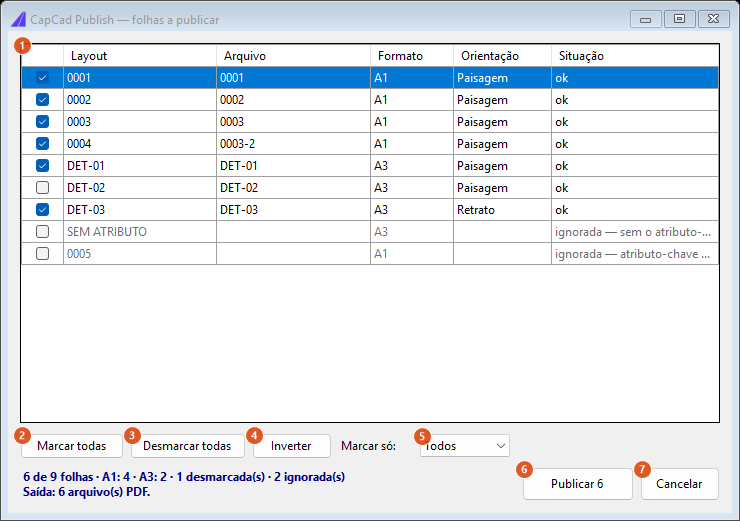
The check of a run in "Multiple layouts". Sheet 0004 became 0003-2 because its title block repeated the number; DET-02 was cleared by hand; the last two rows are grey — they cannot be published.
| # | Control | What it does |
|---|---|---|
| 1 | Grid | One row per sheet found, with the publish tick, the Layout, the File that will be produced (without an extension), the Format, the Orientation and the Status. The box in the first column turns that sheet on or off. |
| 2 | Check all | Ticks everything that can be published. |
| 3 | Uncheck all | Clears everything. |
| 4 | Invert | Inverts the ticks of the publishable sheets. |
| 5 | Check only: | Ticks only the sheets of the chosen format and clears the rest — the shortcut for publishing just the A1s, or just the A3s. It is disabled when the run has a single format. |
| 6 | Publish N | Confirms. The caption carries the count, and the button is disabled when nothing is ticked. |
| 7 | Cancel | Leaves without plotting anything, silently. |
The possible values of the Status column:
| Status | What it means |
|---|---|
ok |
the sheet will be published |
file already exists (in red) |
there is a file with that name in the destination folder; it will be overwritten if 19 is ticked |
skipped — key attribute not found |
the block does not have the tag chosen in 1 |
skipped — key attribute is empty |
it has the tag, but the value is blank |
skipped — block has no geometry |
the frame could not be measured |
A skipped row appears in grey and cannot be ticked. The footer sums up: how many of how many sheets, how many of each format, how many cleared, how many skipped, how many files (or pages) will come out and how many already exist at the destination.
How the format is chosen
With Detect (9) selected, the format comes from the frame's width on paper alone — the height never enters the arithmetic, it only decides the orientation. The ladder is cumulative, and the A4 band is a narrow window:

The command's real ladder, walked in half-millimetre steps: A4 only between 208 and 212 mm; A2 above 440; A1 above 820; A3 for everything else, including a 300 mm frame. (The axis label of this figure reads "largura da moldura no papel (mm)" — frame width on paper, in millimetres.)
A frame 210 mm wide comes out A4; one 300 mm wide comes out A3, not A4. If your title block does not fall into one of those bands, use Force format (10).
Repeated names
Two sheets that resolve to the same file name would get the same output path, and the second would erase the first. The command settles that before the check: the first occurrence of each name keeps the bare name, and each repeat after it gets -2, -3, and so on, skipping names already taken — with sheets 05, 05 and 05-2, the result is 05, 05-3 and 05-2, losing none of them. The renamed ones are listed on the command line. In Single PDF the question does not arise: there is one file, and the sheets are its pages.
Remembered between sessions
Every choice on the Publish tab (key attribute, CTB, folder, output format, format and orientation, mode, overwrite, single PDF) and those of the Util tab. They are saved when the form closes and restored when it opens; the lists are populated first, so a stored value can replace the default.
Notes
- The drawing has to be saved. The output folder is derived from the dwg's path; without it the command warns and does not run.
- A run can end with no files at all. If no sheet is publishable, the command shows "Blocos válidos não foram encontrados. Verifique se o atributo-chave existe nos blocos atributados das pranchas". Cancelling in the check list, by contrast, exits silently.
- A sheet whose paper the printer does not have is skipped, with a warning on the command line, rather than coming out at the wrong size. The typical case is
A1Lon a.pc3without the custom media. - In Single PDF, cancelling only works before the first page. Interrupting halfway would leave a truncated PDF that looks complete, so the progress bar only cancels the run before the document starts.
\PDF + dwg name(6) only applies in paper space. Running in model space the suffix is ignored, and the folder used is the one the command opens at the end.- The run button's caption and several of the command-line warnings are in Portuguese in every language.
- To build the sheets this command publishes, see Sheet Set — sheet articulation.