| Command | CAPCAD_DIVIDER |
| Shortcut | DV |
| Ribbon | CapCad tab › CAD Utilities panel › Geometry split button › Divider Assistant [DV] |
| Category | CAD Utils: Segment |
| Form | DividerForm (modeless: the drawing stays live while it is open) |
| Hosts | AutoCAD, BricsCAD, GstarCAD, ZWCAD, ARES Commander |
| Also opened by | CAPCAD_MARKING_DISTANCE_MARKER (same form, pre-set for distance-marker blocks); the Cycleway and Airport tools open it with their own presets |
Divide or measure any path, and see the result before you commit. The CAD's own DIVIDE and MEASURE place points once and leave you to check the outcome. The Divider Assistant keeps the drawing live while you work.
- Live preview. Every change redraws the stops on the path. Accept when it looks right, Reset if it does not.
- More ways to space. A fixed length, an exact number of divisions, or a typed list of distances, with a start offset and a lateral offset, all in one tool.
- Blocks and geometry, not just points. Insert a block or repeat a drawn detail at each stop, aligned to the path, rotated, scaled and trimmed to a boundary.
- Presets. Save the setups you use every day, such as north arrows per sheet or stud rings, and reload them in one click.
- Works with the rest of CapCad. Every result is tagged as a group you can re-select later, and the distance marker, cycleway and airport tools open this same assistant already configured.
- The same tool on five CADs. AutoCAD, BricsCAD, GstarCAD, ZWCAD and ARES Commander.
What it does
The Divider Assistant walks along a path you pick (line, polyline, arc or circle) and does one thing at regular stops: it places a point, inserts a block, repeats a geometry you loaded, or cuts the path into pieces. Stops can be a fixed distance apart, an exact number of equal divisions, or a list of distances you type. Every stop can be shifted sideways, and blocks can follow the path direction.
Typical uses: north arrows on every sheet frame along a road, station labels, distance markers, studs (tachões) around a curve, repeating a drawn detail along an edge, or simply splitting a long polyline into equal pieces.
The result is a live preview. Every change you make on the form erases the previous preview and redraws it. When you are happy, click Accept; the preview becomes ordinary drawing entities.
Workflow
- Run
CAPCAD_DIVIDER(or typeDV). The form opens beside the drawing. - Click Select path (49) and pick the curve. Pick it near the end you want to start from: the walk always begins at the end closest to your pick. The path length appears in Entity length (52).
- Choose the Method (1, 3 or 4): distance between stops, number of divisions, or a list of values.
- Choose the Output (22, 23, 24 or 27): cut the path, points, a block, or a loaded geometry.
- Refine: Initial extent (10), Offset from line (14), Include initial / final (18, 19), rotation and scale for blocks (37 to 44).
- Click Accept (65) to keep the result, Reset (66) to erase it, or Update (67) to redraw it.
- Close the form. The last preview stays in the drawing, and your settings are remembered for next time.
Each redraw is one undo step, so U in the CAD removes the last preview only.
The form
Numbers are the same in every screenshot of this page. Controls that only appear in some states (the Block/Geometry panel, the Trim panel, the Values list box) keep their number wherever they show.
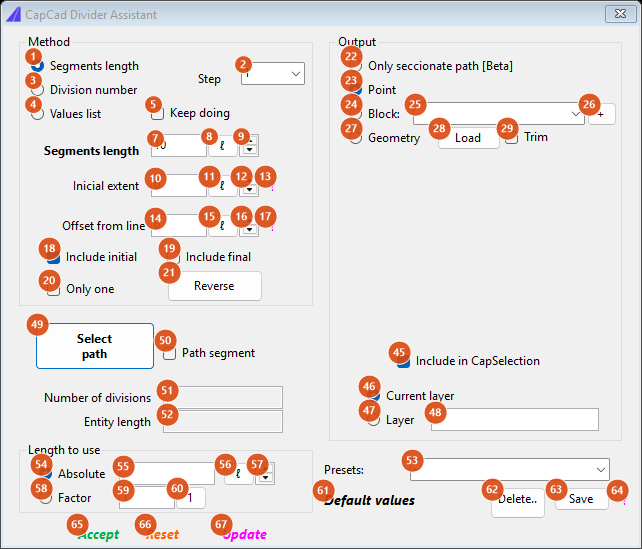
Default state: Method "Segments length", Output "Point".
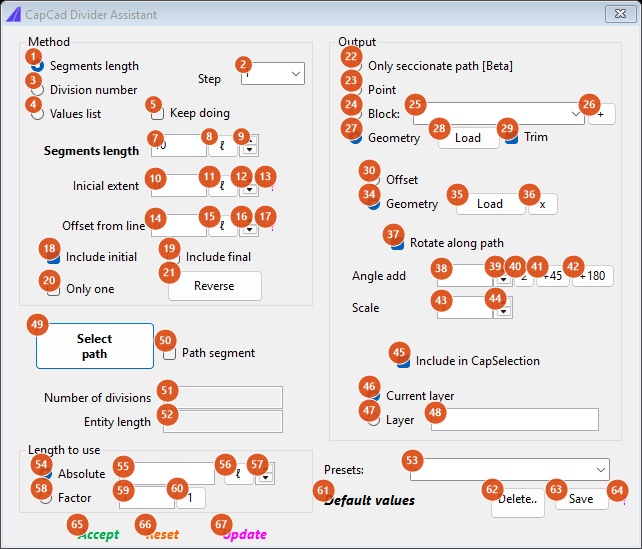
Output "Geometry" with Trim on: the Trim panel (30 to 36) and the Rotate/Angle/Scale panel (37 to 44) appear. The same panel shows for Output "Block".
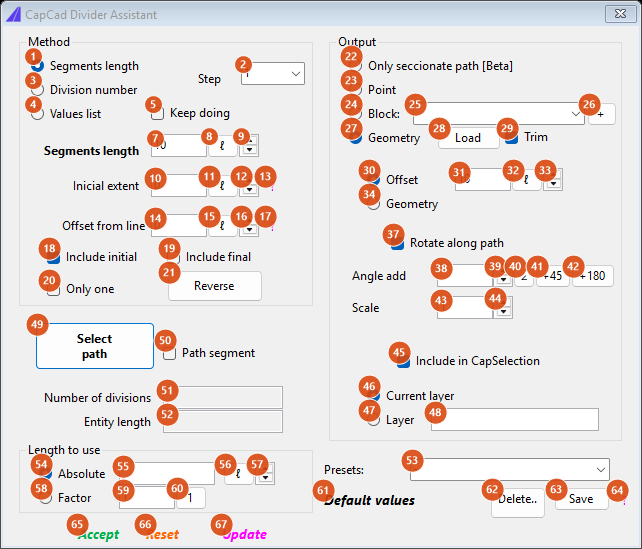
Trim "Offset" selected: the offset distance controls (31 to 33) replace the Load / remove buttons.
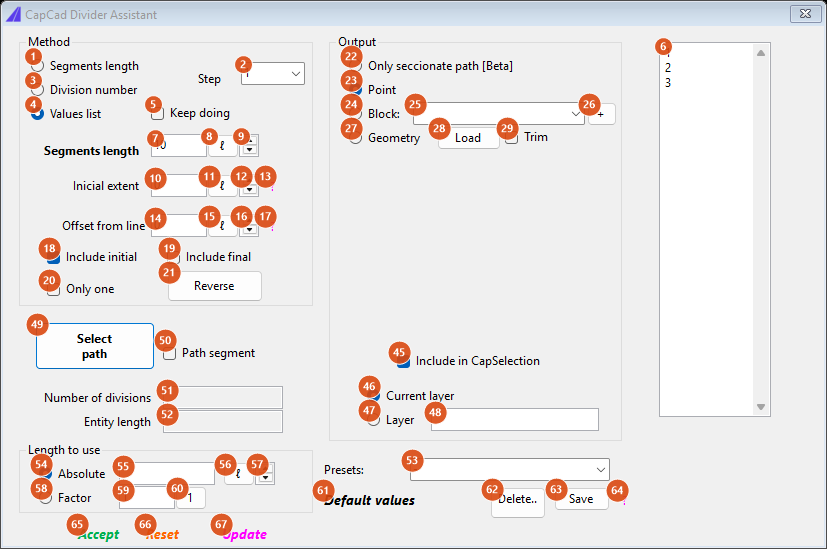
Method "Values list": the form widens and the list box (6) appears on the right.
Method (frame at top left)
| # | Control | What it does |
|---|---|---|
| 1 | Segments length | Stops are a fixed distance apart. The distance is the value in box 7. |
| 2 | Step | Increment used by every ± spinner on the form (9, 12, 16, 33, 44, 57): 10, 1, 0.1, 0.01 or 0.001. |
| 3 | Division number | The path is split into this many equal parts (box 7 becomes a count). Switching from Segments length converts the current value into the equivalent number of divisions, and back again. In this mode box 7 is an integer of at least 2. |
| 4 | Values list | Stops come from the list in box 6. Each value is a distance added to the previous stop, so 5, 10, 20 gives stops at 5, 15 and 35. In this mode Initial extent, Only one and Include initial / final are ignored (a negative Initial extent still pre-extends the start). |
| 5 | Keep doing | Values list only. After the list is used up, keep stepping with the last value until the end of the path. |
| 6 | Values list box | One value per line. Updates the preview as you type. A stop that would land at or past the end is pulled back to just before the end. |
| 7 | Segments length / Division number | The distance between stops (mode 1) or the number of divisions (mode 3). Accepts an expression, for example 350/2, applied when you press Enter. |
| 8 | ℓ | Measure the value in the drawing: pick a base point, then a distance. |
| 9 | ± | Nudge the value by the Step (2). In Division number mode the step is never below 1. |
| 10 | Initial extent | Distance skipped from the start before the first stop; the first stop lands at Initial extent + Segments length. A negative value extends the path backwards by that amount and starts the walk from the extended end (see figure). Not allowed on closed paths. |
| 11, 12 | ℓ, ± | Measure or nudge the initial extent. |
| 13 | ? | Reminder: a negative value creates a gap at the start. |
| 14 | Offset from line | Perpendicular shift applied to every stop. See the note on the sign below. |
| 15, 16 | ℓ, ± | Measure or nudge the offset. |
| 17 | ? | Reminder about the sign of the offset. |
| 18 | Include initial | Add a stop at the start vertex of the path (before the first regular stop). |
| 19 | Include final | Add a stop at the end vertex. Ignored on a closed path. |
| 20 | Only one | Place a single stop at the segment distance and nothing else: a "point at distance" probe. |
| 21 | Reverse | Walk the path from the other end. Everything (initial extent, offset side, block rotation) follows the new direction. |
Output (frame at top right)
| # | Control | What it does |
|---|---|---|
| 22 | Only seccionate path [Beta] | Do not insert anything: cut the path itself at the stops into separate entities. Include initial / final and Only one have no effect here. |
| 23 | Point | A point entity at each stop (default). If the CAD point style is invisible (PDMODE 0 or 1) the command switches it to 3, a cross, and tells you. |
| 24 | Block: | A block reference at each stop, using the block named in 25. If the block is not in the drawing the command tries the CapCad library; if it is still missing it falls back to points and says so. |
| 25 | Block name | Every block in the drawing (anonymous blocks excluded). You can also type a name. |
| 26 | + | Opens the Blocks Library in load-only mode so you can bring more blocks into the drawing; the list refreshes the next time you open it. |
| 27 | Geometry | Repeat a drawn detail at each stop. Load it with 28 first. |
| 28 | Load | Select the curves to repeat. They are moved so the lower-left corner of their extent sits on the stop; offset, rotation and scale (37 to 44) apply exactly as for a block. Cancelling the selection leaves the geometry empty. |
| 29 | Trim | Geometry only: clip every copy against a boundary and keep what is inside. |
| 30 | Offset (trim) | The boundary is a band around the path, this wide on each side (31), built from the path as picked (before any lengthening). |
| 31 to 33 | value, ℓ, ± | The band half-width. |
| 34 | Geometry (trim) | The boundary is one closed curve you pick with 35. |
| 35 | Load (trim) | Pick the trim boundary (one curve). |
| 36 | x | Forget the trim boundary. |
| 37 | Rotate along path | Block / Geometry: align each copy with the path direction at its stop. Off: every copy keeps the same rotation. |
| 38 | Angle add | Extra rotation in degrees, added on top of the path direction (or used alone when 37 is off). Kept in the range 0 to 360. |
| 39 | ± | Nudge the angle by 1°. |
| 40 | ∠ | Measure the angle in the drawing: base point, then direction. |
| 41, 42 | +45, +180 | Add 45° or 180° to the angle. |
| 43 | Scale | Uniform scale of each block / geometry copy. |
| 44 | ± | Nudge the scale by the Step (2). |
| 45 | Include in CapSelection | Tag every drawn entity with a group id, so CAPCAD_SELECT_GROUP can re-select the whole result later. One id per redraw. On by default. |
| 46 | Current layer | Draw on the current layer (default). |
| 47 | Layer | Draw on the layer named in 48, created if it does not exist. Applies to points, blocks, geometry and cut pieces alike. |
| 48 | Layer name | Applied when you press Enter. |
Path and readouts (middle)
| # | Control | What it does |
|---|---|---|
| 49 | Select path | Pick the curve to walk. The walk starts at the end nearest the pick. Picking a new path keeps the previous result in the drawing (it is no longer part of the preview). The caption changes to Select new path… once a path is set. |
| 50 | Path segment | Before picking, tick this to use only part of the curve: after the pick you click two points and the stretch between them becomes the path. |
| 51 | Number of divisions / Length of segments (read-only) | The counterpart of box 7: in Segments length mode, how many divisions the path gets; in Division number mode, how long each division is. Computed from the original path length. |
| 52 | Entity length (read-only) | Length of the picked path. |
Length to use (frame at bottom left)
| # | Control | What it does |
|---|---|---|
| 54 | Absolute | Before dividing, stretch or shrink the path so its total length equals box 55. The change is split equally between the two ends. Selected automatically when you edit 55. Default: the path length itself, so nothing changes. |
| 55 | value | Target length. Zero or empty means no change. |
| 56, 57 | ℓ, ± | Measure or nudge the target length. |
| 58 | Factor | Multiply the path length by box 59 before dividing (1.25 makes it 25 % longer). Selected automatically when you edit 59. |
| 59 | value | The factor. |
| 60 | 1 | Reset the factor to 1 and redraw. |
Presets (bottom right)
| # | Control | What it does |
|---|---|---|
| 53 | Presets | Your saved presets first, then -, then the built-in ones. Selecting one (or typing its name and pressing Enter) loads its values and switches the output to Block. Typing a new name here is how you create a preset. |
| 61 | Default values | Segment 10, initial extent 0, offset 0, angle empty, scale 1, Only one off, layer empty, output Point, block name cleared. |
| 62 | Delete… | Delete the preset named in 53, after confirmation. Built-ins cannot be deleted. |
| 63 | Save | Save the current values under the name in 53 (asks before overwriting). The name appears in the list at once. |
| 64 | ? | Reminder: type a name to create a new preset, then Save. |
Built-in presets and what they set (all select Block output and clear the layer and scale first):
| Preset | Mode | Segment | Initial extent | Offset | Block | Rotate | Ends |
|---|---|---|---|---|---|---|---|
| NORTE 1 FOLHA | length | 350 | 330 | 100 | NORTE | off | off |
| NORTE 2 FOLHAS | length | 350 | 330 | 25 | NORTE | off | off |
| COTAS VIA | length | 350 | 175 | 0 | COTAS_VIA | on | off |
| SENTIDOS P.SIMPLES | length | 350 | 175 | 0 | SENTIDOS | on | off |
| SENTIDOS P.DUPLA | length | 350 | 175 | 0 | SENTIDOS P DUPLA | on | off |
| TACHÃO EM CÍRCULO | divisions | 15 | 0 | 0.4 | TACHAO | on | off |
TACHÃO EM CÍRCULO also sets the layer to the manual yellow horizontal-marking layer of the active layer catalogue. User presets are saved with your CapCad settings and keep: mode, segment, initial extent, offset, block, only-one, rotate, angle, ends, scale and layer.
Actions (bottom)
| # | Control | What it does |
|---|---|---|
| 65 | Accept (green) | Keep the preview as ordinary entities. The form stays open for the next path. |
| 66 | Reset (orange) | Erase the preview. |
| 67 | Update (magenta) | Redraw the preview with the current values. |
| status line | Blue OK after a successful redraw; red text when the values cannot produce a result. |
How the options combine
All figures below were produced by running the command's own planner on a sample path of length 119.76; the numbers next to the stops are distances along the path.
Segments length
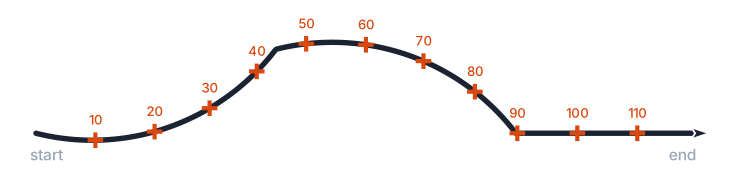
Segments length = 10: a stop every 10 units, starting 10 units from the start. The path ends are not stops.
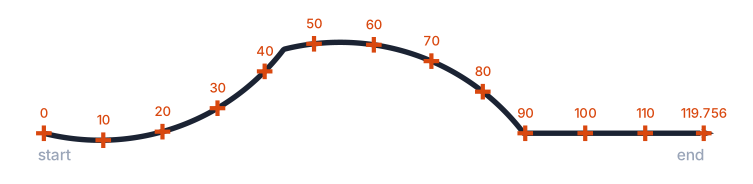
The same with Include initial and Include final: the two ends are added (0 and 119.76).
Division number
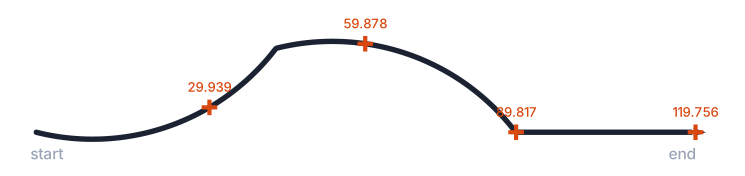
Division number = 4: stops at 1/4, 2/4, 3/4 and the end. Box 51 reads 29.94, the length of one division.
Initial extent
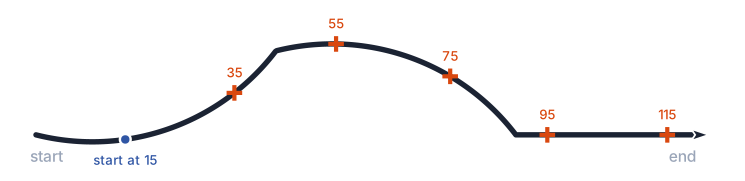
Segments length 20 with Initial extent 15: the first stop is at 15 + 20 = 35, then 55, 75, 95, 115.
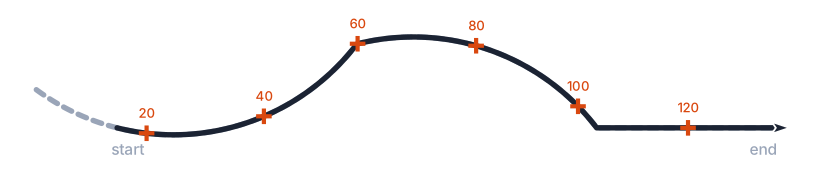
Initial extent −15: the path is extended 15 units backwards (dashed) and the walk starts from there, so stops fall at 5, 25, 45 … of the original path.
Offset from line
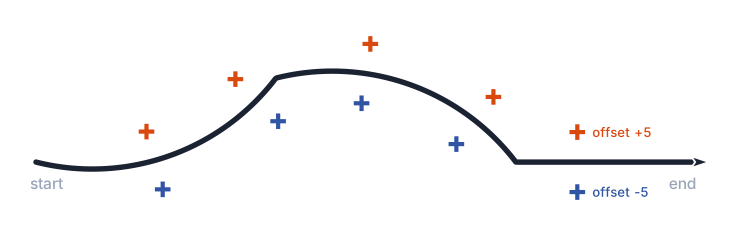
Offset +5 (orange) and −5 (blue) on the same path.
Note on the sign. A positive offset moves the stop to the left of the walking direction (tangent + 90°), and this is what the figure shows. Use Reverse (21) or flip the sign if the stops land on the wrong side.
Only one
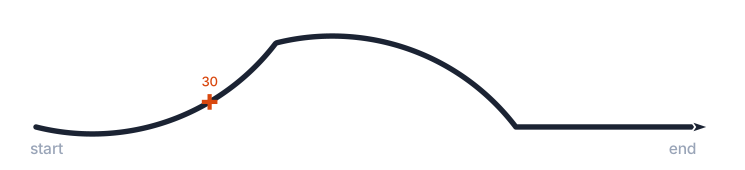
Only one with Segments length 30: a single stop at 30.
Values list
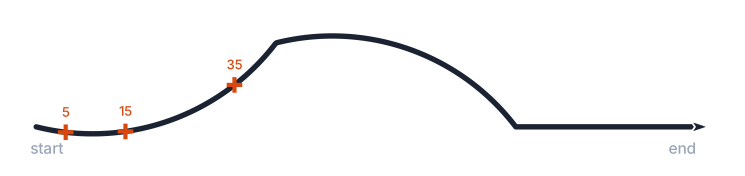
Values 5, 10, 20: stops at 5, 15 and 35 (each value is added to the previous stop).
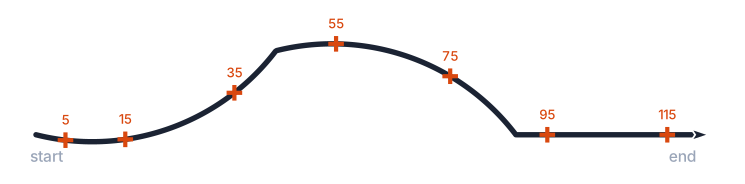
The same list with Keep doing: after 35, the last value (20) repeats: 55, 75, 95, 115.
Blocks: rotation
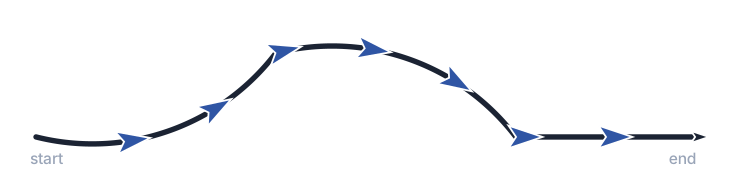
Rotate along path on: each block follows the path direction at its stop.
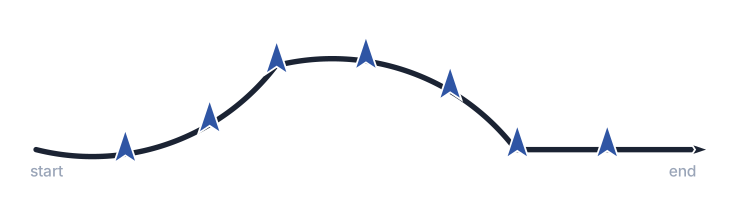
Rotate along path off, Angle add 90: every block has the same fixed rotation.
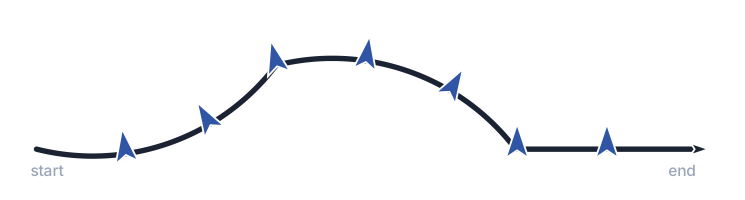
Rotate along path on, Angle add 90: aligned with the path, then turned 90° (perpendicular).
Only seccionate path
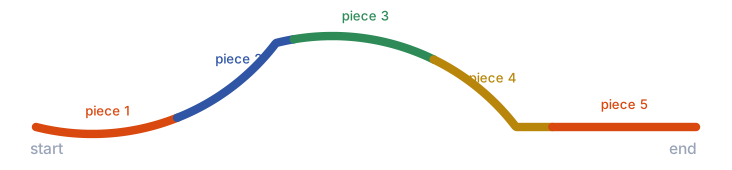
Division number 5 with "Only seccionate path": the path becomes 5 separate entities, nothing is inserted.
Length to use

Factor 1.25: the path is lengthened by 25 %, split equally at both ends (dashed), and divided every 20 along the longer path.
Reverse
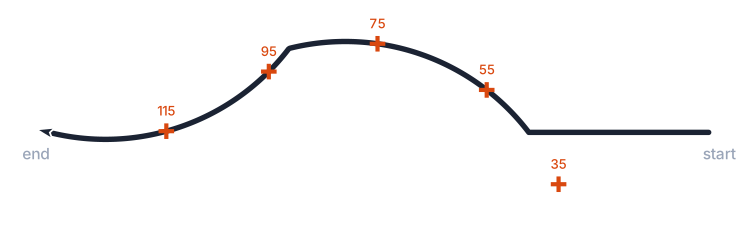
Reverse with Segments length 20 and Initial extent 15: the same path walked from the other end.
Remembered between sessions
Segment value, initial extent, offset, block scale, method (length or divisions), output (point or block), block name, rotate flag, angle, Only one, and Include initial / final. They are saved when the form closes and restored when it opens; the block name is restored only if that block exists in the drawing, otherwise the output falls back to Point.
Notes
- Distance-marker mode (
CAPCAD_MARKING_DISTANCE_MARKER) opens this same form with the block list extended byDISTANCE_MARKERandDISTANCE_MARKER_DOUBLE, the block box tinted light blue, angle 270, scale 1, offset 0, segment 10 and output Block. - In Division number mode the stops include the end of the path but not the start; tick Include initial if you need the start too.
- The Trim band (30) is built from the path as picked, not from the lengthened path.