| Commands | CAPCAD_BLOCK_TOOLS (blocks utilities) · CAPCAD_BLOCK_LOAD (load a definition from the library) · CAPCAD_BLOCK_ATTRIBUTE_EDIT (edit attributes) · CAPCAD_BLOCK_ATTRIBUTE_IMPORT (spreadsheet → drawing) · CAPCAD_REFERENCE_PLACER (reference placer) |
| Shortcuts | CA for CAPCAD_BLOCK_ATTRIBUTE_EDIT, in the shipped shortcut files for AutoCAD, BricsCAD, GstarCAD and ZWCAD. The other four have no alias |
| Ribbon | CapCad tab › CAD Utilities panel › Draw & Modify split button › Block Utils (CAPCAD_BLOCK_TOOLS), Attributes (CAPCAD_BLOCK_ATTRIBUTE_EDIT) and Reference Placer (CAPCAD_REFERENCE_PLACER); same panel, Tools split button › CAD Sheet Sync (CAPCAD_BLOCK_ATTRIBUTE_IMPORT). CAPCAD_BLOCK_LOAD has no button |
| Category | Vertical (CAPCAD_BLOCK_ATTRIBUTE_EDIT) · CAD Utils: Segment (CAPCAD_BLOCK_ATTRIBUTE_IMPORT) · NEW (CAPCAD_BLOCK_TOOLS, CAPCAD_REFERENCE_PLACER) · none (CAPCAD_BLOCK_LOAD) |
| Forms | BlocksUtilitiesForm — Blocks Utilities, modeless, ten tabs · CapAttributesForm — Cap Attributes, modal · AttInForm — Cap ATT-IN, modeless · RefPlacerForm — Reference Placer, modeless |
| Hosts | CAPCAD_BLOCK_ATTRIBUTE_EDIT and CAPCAD_REFERENCE_PLACER: AutoCAD, BricsCAD, GstarCAD, ZWCAD and ARES Commander. CAPCAD_BLOCK_TOOLS, CAPCAD_BLOCK_ATTRIBUTE_IMPORT and CAPCAD_BLOCK_LOAD: AutoCAD only (on ARES the first two answer with the coming soon notice) |
| Also opened by | the Swap blocks button on the Options/Utils tab of the Road Library, which runs CAPCAD_BLOCK_TOOLS; the command CAPCAD_BATCH_BLOCK, which opens the same form on the Insert tab (see Batch insert); and the placer's CapSign button, which opens CapSign |
Everything you do to a block once it is already in the drawing. Export the library the drawing has become, replace one definition with another across every reference, find the blocks stacked on the same point, correct the attributes of hundreds of signs from a spreadsheet, and butt one drawing against another without measuring.
- Replacing a definition is the command the CAD is missing. An old block becomes the new one across every reference, with position, rotation, scale, layer and attribute values preserved — and the "new" one can be a
.dwgfile from outside the drawing. - Invisible duplicates come out. Two identical blocks on the same point hide behind each other and double the quantity; here they are listed by id and can be deleted in one pass.
- The spreadsheet goes back into the drawing. What came out in the Entity Report is edited in Excel and reapplied by id — attributes, dynamic properties, text and layer, all in one pass.
- Attributes across every copy. Editing one sign and propagating the value to every reference of the same block is a checkbox.
- Butt without measuring. The placer aligns two selections anchor to anchor, with a declared gap in metres, and draws the bounding boxes so you can check before accepting.
- The library resolved by name.
CAPCAD_BLOCK_LOADlooks for the.dwgdown the project's folder order and brings the definition into the drawing, saying where it came from.
What it does
| Command | What it opens | What it works on |
|---|---|---|
CAPCAD_BLOCK_TOOLS |
Blocks Utilities, Export tab | the drawing's block definitions and the references in model space |
CAPCAD_BLOCK_LOAD |
nothing — it asks on the command line | the project's block library |
CAPCAD_BLOCK_ATTRIBUTE_EDIT |
Cap Attributes (modal) | one block reference, or every reference of the same name |
CAPCAD_BLOCK_ATTRIBUTE_IMPORT |
Cap ATT-IN | any entity identified by ObjectID or HANDLE |
CAPCAD_REFERENCE_PLACER |
Reference Placer | any two selections, by bounding box |
CAPCAD_BLOCK_TOOLS — blocks utilities
Opens the Blocks Utilities form already on the Export tab. It is the same form as CAPCAD_BATCH_BLOCK, which opens it on the Insert tab — that tab is documented in Batch insert and is not repeated here.
The form is modeless and there is one instance per session: running the command again brings the window to the front on the tab you asked for, with everything you had already typed. On the first open, the block list and the replacement-block list are filled with the drawing's definitions, and the path field is given the current drawing's folder.
Control numbering is continuous across the tabs: one number identifies the same control in every image in this section.
The screenshots on this page are of a Portuguese session; the numbering is the same in both editions, and the tables give the English captions.
The Export tab — the library the drawing has become
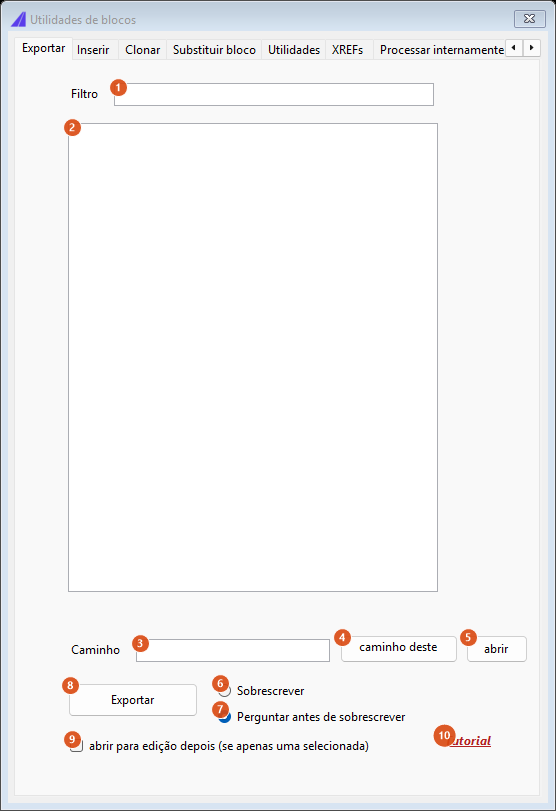
The list appears empty outside the CAD: it is filled with the active drawing's definitions.
| # | Control | What it does |
|---|---|---|
| 1 | Filter | Cuts the list to the definitions whose name contains the text, case-insensitively. It filters as you type. |
| 2 | block list | The drawing's block definitions, alphabetically. Layouts, xrefs and anonymous blocks (names starting with *) are left out. Multiple selection. |
| 3 | Path | The destination folder. It comes filled with the open drawing's folder. |
| 4 | this dwg path | Returns field 3 to the open drawing's folder. |
| 5 | open | Opens the folder in 3 in Explorer. |
| 6 | Overwrite | An existing file is deleted and rewritten without asking. |
| 7 | Ask for overwrite | The default. For each file that already exists it asks Overwrite <name>.dwg?; answering no skips that block. |
| 8 | Export | Confirms how many definitions will be processed and writes each one as <path>\<block name>.dwg (a WBLOCK of the definition, in the CAD's current DWG version). At the end it says Completed, or gives the count and the list of the ones that failed. An empty or non-existent path, and a list with no selection, stop before it begins. |
| 9 | open for edit after (if only one selected) | Only acts when exactly one definition was selected and exported successfully: the freshly written .dwg is opened in the CAD, the completion dialog is suppressed and the form closes. |
| 10 | Tutorial | Opens the CapCad site in the browser. |
The Clone tab — copying a definition
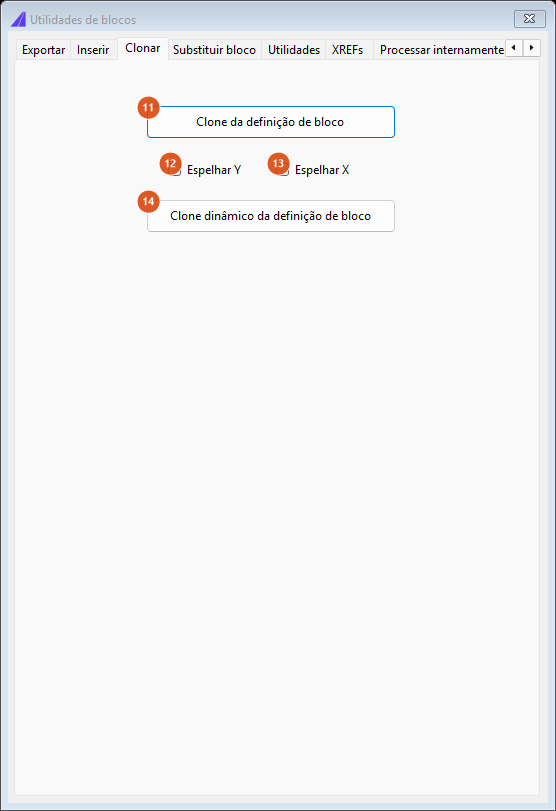
| # | Control | What it does |
|---|---|---|
| 11 | Block Definition Clone | Opens a list of the drawing's definitions, asks for the new name (suggesting <name>_2) and creates a new definition with a copy of all the original's entities. Invalid characters are stripped from the name. A dynamic block is not accepted, and a name already in use ends the operation silently. |
| 12 | Mirror Y | Mirrors the copy about the Y axis — left becomes right. |
| 13 | Mirror X | Mirrors the copy about the X axis — upside down. |
| 14 | Block Definition Clone Dynamic | Asks for a reference in the drawing and freezes its current state into a new static definition called <name>_static (_static2, _static3… if the name is taken). The reference is recreated at the same point, with the same rotation, scale and layer, carrying the attribute values, and the original is erased. Boxes 12 and 13 do not apply here. |
The Block Replace tab — swapping one definition for another
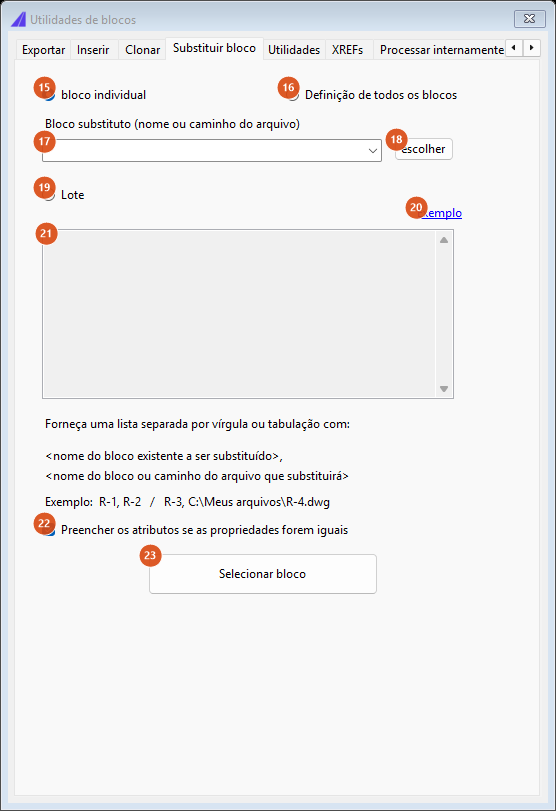
The batch box (21) only enables with Batch (19) ticked; in the other two modes it is the replacement-block line (17, 18) that counts.
| # | Control | What it does |
|---|---|---|
| 15 | individual block | The default. You pick one reference in the drawing and only that one is replaced. |
| 16 | All blocks definition | You pick one reference and every reference with the same name is pointed at the replacement definition. |
| 17 | Block to replace for (name or file path) | The name of a definition already in the drawing or the full path of a .dwg — in which case the file is imported as a definition. Disabled in Batch mode. |
| 18 | pick | Asks for a reference in the drawing and puts its effective name into field 17. |
| 19 | Batch | Turns batch mode on: box 21 takes over and 17/18 disable. |
| 20 | Sample | Writes two example lines into box 21, one of them with a file path. |
| 21 | batch box | One swap per line, in the form old block, new block — the comma may be a tab, and the "new block" may also be a .dwg path. Lines with no separator go into the report as INVALID LINE. |
| 22 | Fill in attributes if properties are the same | Ticked by default: carries the old block's attribute values across to the new one, matching by tag. It only has an effect in mode 15; in modes 16 and Batch the attributes are always rebuilt from the new definition and reloaded by tag. |
| 23 | Select block | Runs. In modes 15 and 16 the form hides and asks for the reference; in Batch mode nothing is asked — the lines are processed in one pass and a Block replace report window opens with each line's result. |
The replacement block always lands at the same insertion point, rotation, scale and layer as the one it replaced. A replacement block that exists neither in the drawing nor as a file returns Block file to be inserted not found, and swapping a block for itself returns the warning that the two names are the same.
The Utils tab
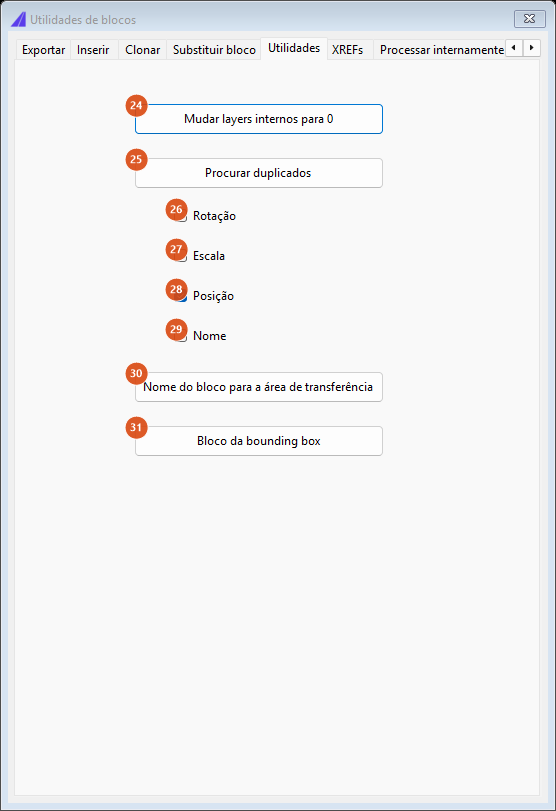
| # | Control | What it does |
|---|---|---|
| 24 | Change layers internally to 0 | Asks for the layer (suggesting 0) and walks every block definition in the drawing except layouts and xrefs. Only polylines are moved, and only they are given colour ByLayer. Lines, arcs, texts and hatches inside the block are left alone. The layer is created if it does not exist. |
| 25 | Find duplicates | The same as button 43 on the Duplicates tab: it sweeps model space, lists the duplicates on the Find tab and says how many it found. |
| 26–29 | Rotation, Scale, Position, Name | No effect in this version. The duplicate key is fixed (see below). |
| 30 | Block name to clipboard | Asks for a reference and copies its effective name to the clipboard, repeating it on the command line. On a dynamic block that is the definition's name, not the anonymous block's. |
| 31 | Bounding box block | Asks for a reference and draws the bounding rectangle of the definition, transformed by that reference's position, rotation and scale. Hatches, texts, mtexts and attribute definitions are left out of the calculation, and on a dynamic block it is the base definition that counts, not the current stretched state. The rectangle comes out on the current layer. |
The XREFs tab
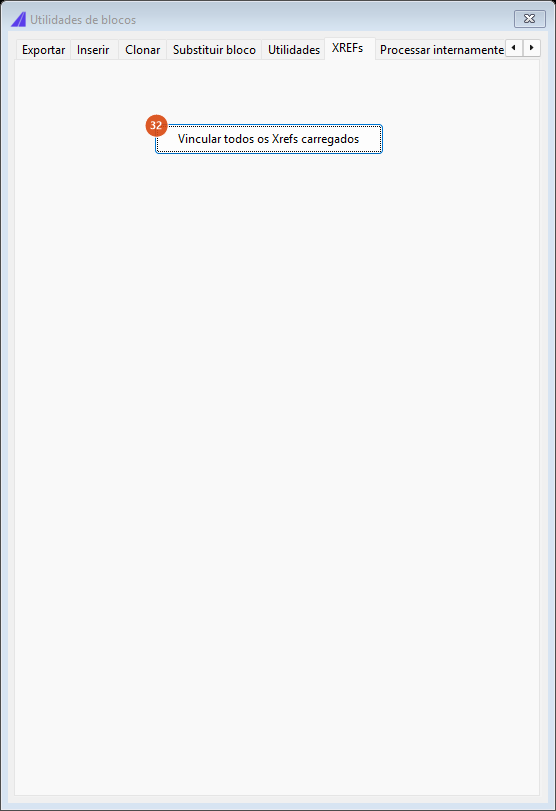
| # | Control | What it does |
|---|---|---|
| 32 | Bind All Loaded Xrefs | Resolves and binds, in one pass, every loaded external reference, and says how many there were. |
The Process internally tab — swapping a colour inside the blocks
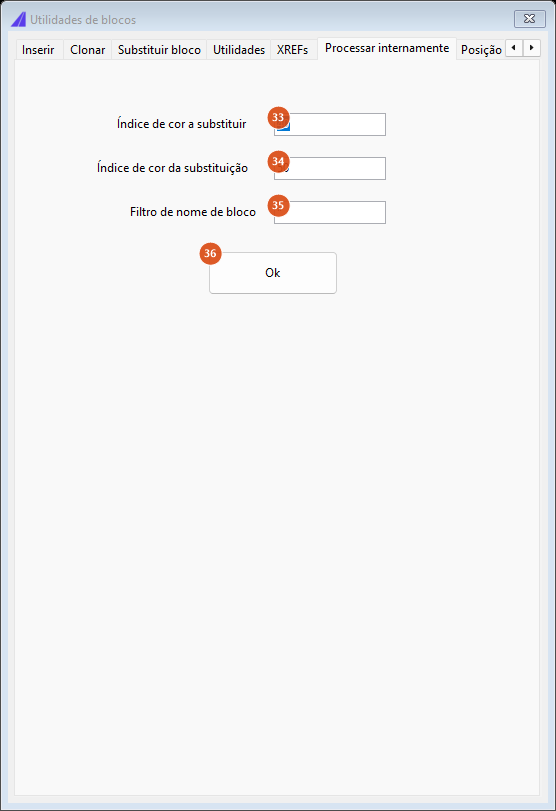
| # | Control | What it does |
|---|---|---|
| 33 | Color index to replace | The source ACI index. Default 40. |
| 34 | Color index to replacement | The destination ACI index. Default 50. |
| 35 | Block name filter | Default *; left blank it is treated as *. It accepts the * and ? wildcards over the definition's name. |
| 36 | Ok | Runs and says how many entities changed. Either index being non-numeric stops with Invalid input data. |
Despite the generic label, only hatches inside the definitions matching the filter are recoloured. No other entity is touched.
The Position tab — taking blocks to a point
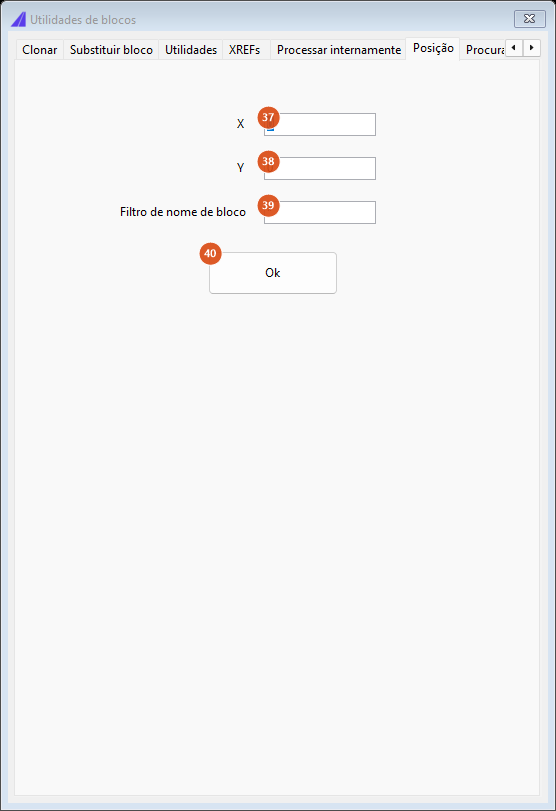
| # | Control | What it does |
|---|---|---|
| 37 | X | The destination X. Default 0. Read with a dot decimal separator. |
| 38 | Y | The destination Y. Default 0. |
| 39 | Block name filter | No effect in this version: every block in the selection is moved, whatever its name. |
| 40 | Ok | Hides the form, asks for a selection and moves every block reference in it to the X/Y point, keeping each one's own Z. It says how many blocks it moved. |
Every selected block goes to the same point — they end up stacked. This is a tidying command, not a distributing one.
The Find tab — the duplicate search result
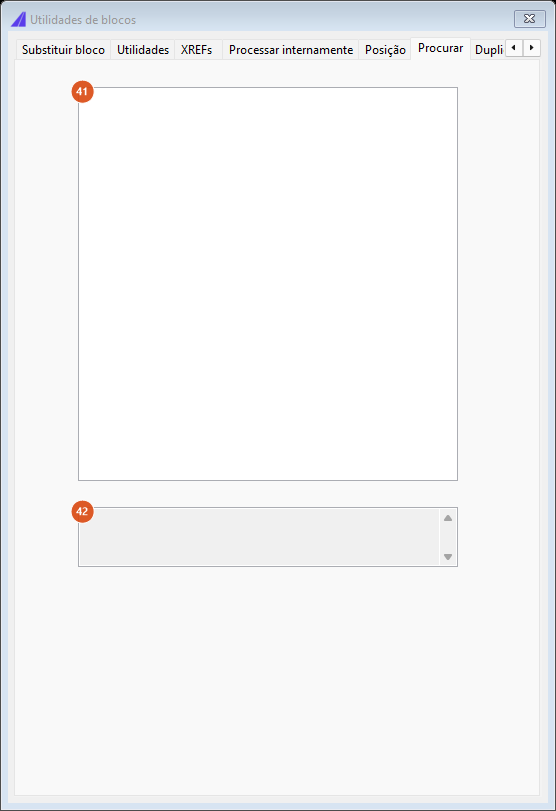
| # | Control | What it does |
|---|---|---|
| 41 | result list | One line per duplicate reference, in the form id + tab + block name. It is filled by buttons 25 and 43, which bring the form to this tab. |
| 42 | detail | The total found. |
The Duplicates tab
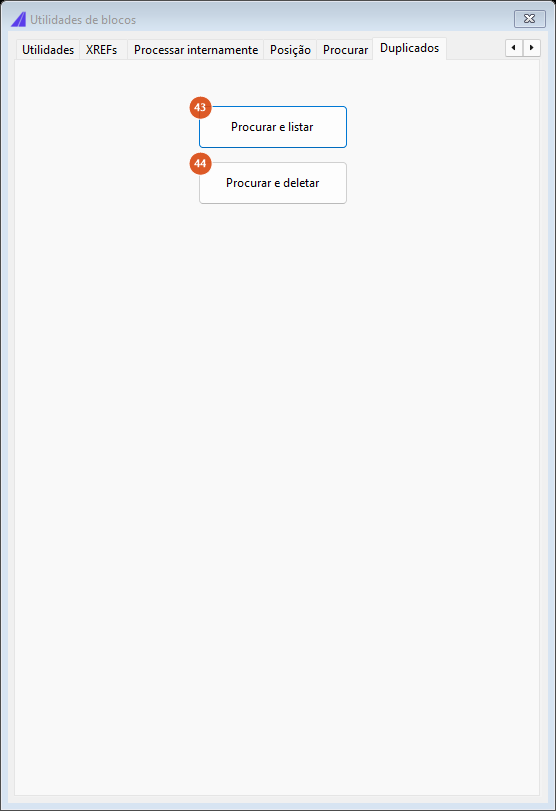
| # | Control | What it does |
|---|---|---|
| 43 | Find and list | Sweeps model space, fills the Find tab and says how many duplicate references there are. It deletes nothing. |
| 44 | Find and delete | The same sweep, but it erases every copy after the first — one of each group survives. It says how many it deleted and lists nothing. |
Two references count as duplicates when they match in effective block name (case-insensitively), insertion point (X, Y and Z), rotation, and X and Y scale, all rounded to four decimal places. Only model space is swept.
CAPCAD_BLOCK_LOAD — load a definition from the library
A diagnostic command, with no ribbon button and no form. It asks Block name to load: on the command line and brings the block's definition into the drawing — inserting nothing. The trailing .dwg may be typed or left off.
The search follows the same folder order the Road Library and the batch insert use:
- a definition already in the drawing;
- the
Support\Dwgfolder installed with CapCad; - the project's pavement-inscription folder;
- its
viariosub-folder; - the project's library folder;
- its
viariosub-folder; - the immediate sub-folders of the library folder.
Steps 3 to 7 are skipped when there is no active project. The .dwg found is imported as a block definition of the same name, with the units locked to metres — a definition already in the drawing keeps whatever units it has. The command line answers Loaded '<name>' from: <path> — or Loaded '<name>' from: (already in drawing) when the definition was already there, or Block '<name>' not found in any project folder.
It is the most direct way of finding out which folder a block is coming from when two library folders hold files of the same name.
CAPCAD_BLOCK_ATTRIBUTE_EDIT — Cap Attributes
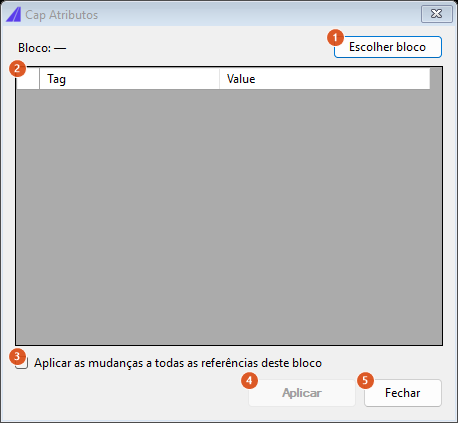
The form is modal: while it is open the drawing accepts no commands. When it asks for the block it hides, and comes back on its own.
| # | Control | What it does |
|---|---|---|
| 1 | Pick block | Hides the form and asks for a block reference in the drawing (any other entity is refused, with Must be a block reference.). The grid is filled with that reference's attributes and the label at the top starts showing the block's effective name. |
| 2 | Tag / Value grid | One attribute per row. Edit the value column. The values are matched back by tag, so the tag column should not be touched. |
| 3 | Apply changes to all references of this block | As well as the picked reference, applies the same values to every other model-space reference with the same effective name. |
| 4 | Apply | Writes. It stays disabled until a block with at least one attribute has been picked. It counts only the attributes whose value actually changed. |
| 5 | Close | Closes. Nothing is undone. |
The line underneath is the status bar: it shows how many attributes the block has, or how many attributes were written across how many blocks. The block count includes every reference visited, even ones where nothing changed.
Constant attributes do not appear in the grid — they are part of the definition and have no per-reference value.
Not available in this version: value lists coming from CapCloud, copying attributes between blocks, "apply to all blocks" of any name, and the revision manager.
CAPCAD_BLOCK_ATTRIBUTE_IMPORT — Cap ATT-IN
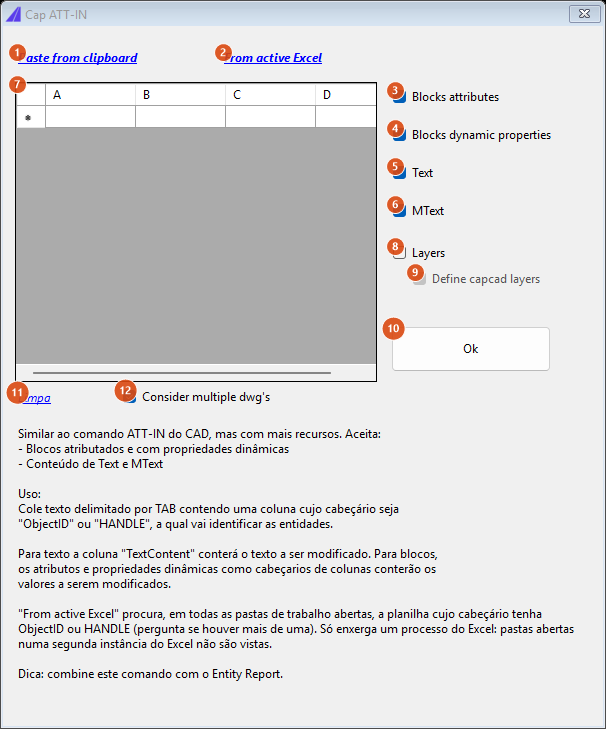
The explanatory text inside the form is in Portuguese in every language of the product; the controls themselves are in English. The button numbered 11 reads Limpa — Clear.
The command runs the Entity Report in reverse: you export, edit in Excel and give it back. The table is tab-separated text with a mandatory header row.
How the table is read
- One header column has to be named
ObjectIDorHANDLE— that is what identifies the entity. Without that column, nothing is applied. The match is case-insensitive but must be the whole word:Object IDorHandleswill not do. - The
TextContentcolumn carries the content of aTextorMText. - The
DWGcolumn says which drawing the row belongs to (see control 12). - The
Layercolumn moves the entity, when Layers (8) is ticked. - Every other column is read as an attribute tag or as a dynamic block property name. The header decides: a column called
KMfeeds theKMattribute. Note thatLayeris also offered as an attribute tag, so a block with aLayerattribute will have it written too. - Rows with no value in the key column are silently dropped.
Controls
| # | Control | What it does |
|---|---|---|
| 1 | Paste from clipboard | Replaces the grid's contents with the clipboard's text. |
| 2 | From active Excel | Looks through every open workbook for the sheet whose header carries ObjectID or HANDLE, and brings its contents in. If there is more than one, it asks which. It only sees one Excel process: sheets open in a second instance do not appear. Nothing found: No valid data found. |
| 7 | grid | The table, with lettered columns. Ctrl+V inside the grid appends rows instead of replacing. |
| 11 | Limpa — Clear | Empties the grid. |
| 3 | Blocks attributes | On by default. Writes each column's value into the attribute of the same tag on the block references. |
| 4 | Blocks dynamic properties | On by default. The same for dynamic block properties. Read-only properties are skipped; a numeric value is read with a dot decimal separator, and anything that is not a number goes in as text. |
| 5 | Text | On by default. The TextContent column becomes the content of Text entities. |
| 6 | MText | On by default. The same for MText. |
| 8 | Layers | Off by default. A column called Layer starts moving the entity to the layer named there. |
| 9 | Define capcad layers | Ticked, but only enabled with 8 ticked. Creates the layer before moving the entity. It only creates the layer: colour, linetype and lineweight stay at the defaults. |
| 12 | Consider multiple dwg's | On by default. Only rows whose DWG column is empty or equal to the open file's name are applied. Unticked, every row is applied, whatever drawing it came from. |
| 10 | Ok | Runs. At the end it says how many entities were changed and, where relevant, how many keys were not found in the drawing. With all five apply boxes unticked, it stops with Invalid input data. |
The form is modeless and there is one instance per session.
CAPCAD_REFERENCE_PLACER — reference placer
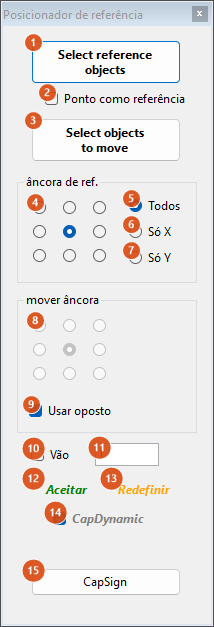
Numbers 4 and 8 mark the whole 3×3 grids, not the cell the callout sits in. The lower grid appears greyed out because Use opposite (9) comes ticked.
It aligns one selection ("objects to move") against a reference, by each one's bounding box: you choose an anchor point on the reference's box, an anchor point on the box of what is going to move, and the two points are made to coincide.
The flow
- Select reference objects (1) — the reference. With Point as reference (2) ticked, the button asks for a click instead of a selection, and the reference's "box" becomes a microscopic square around the point.
- Select objects to move (3) — what is going to shift. An ok appears beside each button once its selection is made: blue for the reference, orange for the objects to move — the same colours as the rectangles drawn in the drawing.
- Choose the anchors (4 and 8), the axis (5, 6, 7) and the gap (10, 11). With CapDynamic (14) on, every change repositions the selection in the drawing at once.
- Accept (12) when it looks right.
Controls
| # | Control | What it does |
|---|---|---|
| 1 | Select reference objects / Click reference point | Asks for the reference: a selection, or a click when 2 is ticked. Cancelling leaves the reference empty — the next calculation warns that both selections are missing. |
| 2 | Point as reference | Swaps the reference selection for a click. PDMODE is set to 3 when it is 0 or 1, so the point is visible. |
| 3 | Select objects to move | Asks for the selection that will move. The position it was selected at is remembered (see 6 and 7). |
| 4 | ref anchor grid | The 3×3 grid of the anchor point on the reference's box: corner, edge midpoint or centre. The default is the centre. |
| 5 | All | The default: the selection may move on both axes. |
| 6 | Only X | The selection only moves horizontally — the Y stays where it is. Ticking this first returns the selection to where it was chosen, then unticks the Gap (10) and disables it. |
| 7 | Only Y | The same, vertically. |
| 8 | move anchor grid | The 3×3 grid of the anchor point on the box of what moves. It is disabled — and filled in automatically — while 9 is ticked. |
| 9 | Use opposite | Ticked by default: the anchor in 8 becomes the opposite of the one chosen in 4 (top-right corner of the reference ↔ bottom-left corner of what moves). It is what makes two pieces butt instead of overlap. |
| 10 | Gap | Turns on the clearance between the two boxes. Clicking inside field 11 ticks this box on its own. Incompatible with 6 and 7. |
| 11 | gap value | The clearance, in drawing units. Default 1; it accepts a dot or a comma decimal separator. It counts as the clear distance between the facing edges: each box is inflated by half the value before the calculation. Enter in this field recalculates. |
| 12 | Accept | Erases the check rectangles and drops the selection of objects to move. The objects stay exactly where they were put. |
| 13 | Reset | Does the same thing as 12 — it undoes nothing and does not return the objects to where they started. To undo, use the CAD's U. |
| 14 | CapDynamic | On by default: any change of anchor, axis or gap repositions the selection at once. Off, a Process button appears just below, applying on demand. |
| 15 | CapSign | Hides the placer and opens CapSign. AutoCAD only. |
Going back from Only X / Only Y to All re-enables the Gap box but does not re-tick it, and does not restore the position.
The rectangles drawn
After each placement the command draws in model space, on the current layer:
- the reference's bounding box in blue (plus a blue
POINT, in point mode); - the bounding box of what moved, in orange.
The previous ones are erased before each redraw, and all of them go on Accept, on Reset or when the form closes. They are ordinary drawing entities — if the CAD closes with the form open, they stay.
Remembered between sessions
CAPCAD_REFERENCE_PLACERstores, in the user preferences, the gap value and whether the Gap box was ticked. They are written when the form closes. The anchors, the axis, Use opposite and CapDynamic always come back at the factory values.CAPCAD_BLOCK_TOOLS,CAPCAD_BLOCK_ATTRIBUTE_EDIT,CAPCAD_BLOCK_ATTRIBUTE_IMPORTandCAPCAD_BLOCK_LOADstore nothing. For as long as the session lasts, though, the modeless forms keep whatever you typed.
Notes
- Prefer
HANDLEtoObjectIDin Cap ATT-IN. The handle is written into the file and holds forever; theObjectIDis the entity's pointer in that session. A spreadsheet exported, saved and reopened after the drawing was closed has invalidObjectIDs, and the rows start pointing at the wrong entities or at nothing. - The Define capcad layers box creates the layer, but does not style it — and outside Brazil the entity is left behind. In an English or Spanish session the layer is created under the country profile's translated name, while the entity keeps its old layer, without a message, and is not counted in the "entities changed" total. The same happens whenever Define capcad layers is unticked and the target layer is not already in the drawing. Use layer names that already exist in the drawing.
- Cap ATT-IN does not tell you what it could not do. It counts the entities changed and the keys not found; a column whose name is a tag the block does not have, or a value the dynamic property refuses, is ignored in silence.
- The dynamic clone (14) accepts a non-dynamic block. It does not check whether the picked reference is dynamic: on an ordinary block it simply creates a copy of the definition called
<name>_static, swaps the reference for it and erases the original. Check what you picked. - The duplicate-criteria boxes (26–29) have no effect. The key is always name + position + rotation + scale, to four decimal places. Ticking or unticking changes nothing.
- Find and delete does not show what it deleted. Button 44 reports only the count. Run 43 first, read the list on the Find tab, and only then delete.
- "Polylines only" and "hatches only". Change layers internally to 0 (24) touches only polylines and Process internally (36) only hatches, despite the generic labels.
- The Position tab stacks, it does not distribute. Every selected reference goes to the same X/Y (37, 38), and the name filter (39) has no effect.
- The placer does not undo. Accept and Reset do exactly the same thing on AutoCAD: they clear the rectangles and drop the selection. The objects stay where the last calculation put them. The way back is the CAD's
U. - On the other CADs the placer behaves differently. On BricsCAD, GstarCAD, ZWCAD and ARES Commander the CapSign button (15) is not available, the check rectangles are not drawn at all, and Reset really does return the selection to where it was chosen while Accept leaves it in place — so on those hosts the two buttons are not equivalent.
- A few texts stay in Portuguese in the English product: the Clear button of Cap ATT-IN reads Limpa, and the whole explanatory paragraph inside that form is Portuguese. Conversely, Select reference objects and Select objects to move on the placer, the Block replace report title and several of the blocks-utilities warning boxes are English in every language.
See also
- Batch insert (spreadsheet to drawing) — the Insert tab of this same Blocks Utilities form, and the batch commands that share the block loader.
- Entity Report — the export Cap ATT-IN reads back in.
- Road Library — where the block definitions come from.
- CapSign — the sign designer the placer's last button opens.