| Command | CAPCAD_REPORT_ENTITY |
| Ribbon | CapCad tab › CAD Utilities panel › Tools split button › Entity Report. It also appears on the Construtivo, BIM and Geo Tools GENERIC panels |
| Category | CAD Utils: Segment |
| Form | EntityReportForm "CapCad Entity Report", modeless: it hides itself while the report runs, comes back at the end, and stays open until you close it |
| Hosts | AutoCAD, BricsCAD, GstarCAD and ZWCAD. Not present in ARES Commander |
| Also opened by | the Entity Report… button on the Tools tab of Reports |
| Related pages | Reports (the project quantities) · Entity panels (the same reading, live in a palette) · Quantities Dashboard |
The generic report: any entity, any property, one spreadsheet. Where Reports know what a marking is and what a sign is, this command assumes nothing — it pours the drawing into a table and lets you decide what goes in each column.
- Filters by type, by layer and by block name. Three filters combined, with wildcards (
*,?,#), accepting lists pasted straight out of a spreadsheet. - Columns the other reports do not have. Every attribute tag, every dynamic property and every XData application becomes a column of its own — including XData written by other programs.
- Groups and sums on the spot. One row per combination of values, with the quantities summed and counted, without a pivot table.
- Opens straight into Excel, in colour. The header comes out colour-coded by column family, with autofilter on and the widths fitted.
- Comes back to the drawing. The handle column is the one
CAPCAD_SELECT_BY_HANDLEreads: paste the cell and the entity is selected and framed. - Remembers the setup. Every box, field and format comes back the way you left it.
What it does
The command walks a set of entities, drops whatever fails the filters, and turns each surviving entity into a row, with one column per property you asked for. Then, if you want, it groups those rows and sums the numeric columns. Finally the table comes out as text, CSV, CapData (JSON) or an Excel workbook.
There is no project intelligence here: the command does not know what a marking, a chevron or a sign is. It knows CAD types (polyline, block, hatch…) and CAD properties (layer, linetype, area, attributes, XData). That is exactly why it covers what the project reports cannot — checking someone else's drawing, finding every block of a given name, summing areas per layer, extracting the XData of a family of entities.
The form is modeless: it hides while the reading happens and reappears afterwards, with the outcome written on its status line. So you can change one option and generate again without reopening anything.
Workflow
- If you are going to use the Select input, you can select first and then call the command — an existing selection is reused.
- Run
CAPCAD_REPORT_ENTITY. - Choose the input (1, 2) and, for All, tick the spaces (37, 38).
- Tick the entity types (11 to 22), using the four shortcut buttons (7 to 10) as a starting point.
- Narrow it down with the layers filter (36) and, for blocks, the block name filter (33).
- Tick the properties that become columns (23 to 28, 31, 32, 34, 35).
- For a summary instead of the item-by-item list, fill in the Grouping frame (39 to 43).
- Choose the output (3 to 6) and the number format (44).
- Click Ok (45). The form hides, the reading runs, and it comes back with the outcome on the status line:
N row(s) from M scanned.The same sentence is written to the command line. - Adjust and generate again as often as you need; Cancel (46) closes the window.
The command only reads the drawing. No output writes entities — not even the Excel one, which opens a new workbook and saves no file.
The form
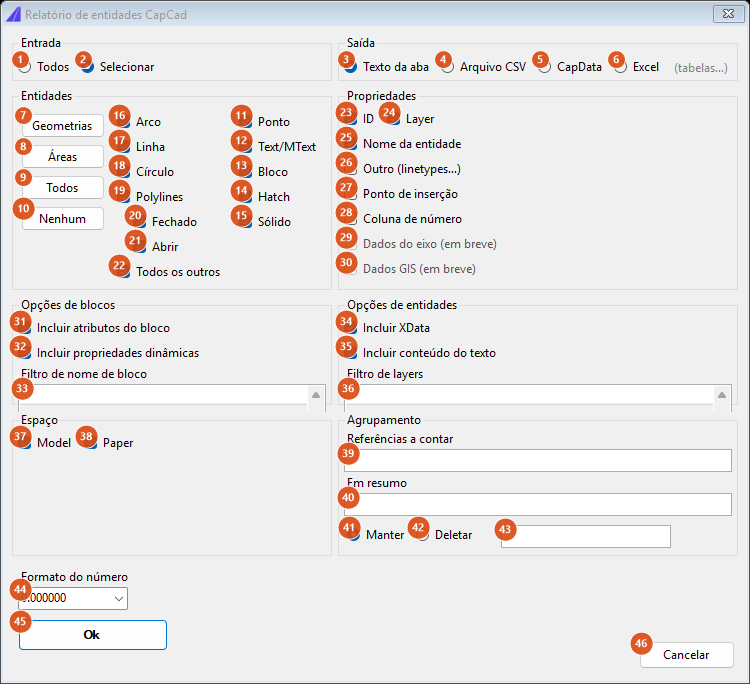
The whole window. It has a single state: no option hides or reveals a frame.
About the capture. The screenshot is of a Portuguese session, because it is the numbered figure shared with the Portuguese edition. The layout and the control numbers are identical in English, and every control below is quoted as the English build shows it.
Input and Output
| # | Control | What it does |
|---|---|---|
| 1 | All | Reads the whole drawing: model space and every paper-space layout, as set in the Space frame (37, 38). The CAD Space column gets Model or the layout name. |
| 2 | Select | Uses the selection made before the command; with none, it asks for one on screen. Selected by default. With nothing selected the status line answers Nothing selected. |
| 3 | Tab text | Opens a text window with the table separated by tabs, with copy, save and close buttons. Default. |
| 4 | CSV file | Asks for the file name (suggested: EntityReport.csv) and writes it in UTF-8. |
| 5 | CapData | Opens the same text window with the table as JSON — an array of objects, one key per column. This is the format CapCad uses to exchange data. |
| 6 | Excel | Opens a visible workbook in Excel, sheet Entity Report, with the header coloured by column family, autofilter on and the widths fitted. No file is saved: saving is up to you, in Excel. |
The grey label (tables…) beside Excel marks outputs — a native CAD table and a table drawn in model space — that are not available in this version; Reports have them.
Entities
The four buttons on the left are shortcuts that tick and untick the boxes in one go:
| # | Button | Leaves ticked |
|---|---|---|
| 7 | Geometries | Line, Polylines (closed and open), Arc and Circle. Everything else unticked. |
| 8 | Areas | Polylines closed only, Circle, Hatch and Solid. |
| 9 | All | Everything. |
| 10 | None | Nothing — Ok refuses until you tick at least one type. |
| # | Control | What it does |
|---|---|---|
| 11 | Point | Point entities. |
| 12 | Text/MText | Single-line and multiline text. |
| 13 | Block | Block references. Only this type goes through the Block name filter (33). |
| 14 | Hatch | Hatches. |
| 15 | Solid | 2D solids. |
| 16 | Arc | Arcs. |
| 17 | Line | Lines. |
| 18 | Circle | Circles. |
| 19 | Polylines | The master switch for polylines — of any kind (lightweight, 2D and 3D). Unticked, no polyline gets in, even with 20 and 21 ticked. |
| 20 | Closed | Together with 19, lets closed polylines in. |
| 21 | Open | Together with 19, lets open polylines in. |
| 22 | All other | Everything not on the list above: dimensions, splines, ellipses, images, viewports, wipeouts, 3D solids, proxy objects. |
Properties
Each ticked box adds one or more columns.
| # | Control | Columns it produces |
|---|---|---|
| 23 | ID | ObjectID — the entity's handle. This is the column that closes the loop: pasted into CAPCAD_SELECT_BY_HANDLE, it gives you the entity selected in the drawing. |
| 24 | Layer | Layer. |
| 25 | Entity name | ObjectName — the CAD class name (AcDbPolyline, AcDbBlockReference, AcDbHatch…). |
| 26 | Other (linetypes…) | Four columns: LayerLinetype (the layer's linetype), EntityLinetype (the entity's), LinetypeScale and Lineweight. Unticked by default. |
| 27 | Insertion point | InsertionX and InsertionY — only for blocks, points, text and mtext. A polyline has no insertion point and is left without the columns. Unticked by default. |
| 28 | Number column | Adds the Number column, numbering the rows from 1 to N. It is applied before grouping: if you group, it disappears unless it is on the list of kept columns. Unticked by default. |
| 29 | Alignment data (soon) | Not available in this version. For the position-along-the-alignment columns (km, station) use Reports, which carry them. |
| 30 | GIS data (soon) | Not available in this version. Latitude and longitude columns likewise. |
The CAD Space column comes out always, whatever you tick.
Besides these, four groups of columns are added automatically depending on each entity's type — see Columns the report produces.
Blocks options and Entities options
| # | Control | What it does |
|---|---|---|
| 31 | Include block attributes | One column per attribute tag found, named att <TAG> — att CODIGO, att DIMENSAO. Each row carries that block's value. |
| 32 | Include dynamic properties | One column per dynamic-block property, named dyn <Property>. The Origin property is ignored. |
| 33 | Block name filter | List of masks the block's effective name must match (for a dynamic block, the definition name, not the anonymous *U12). Empty = all. Applies only to blocks: the other types are unaffected. |
| 34 | Include XData | One column per registered application with data on the entity, with the application name as the header and the first recorded string as the value. The ACAD application is omitted. Since CapCad records its links in XData, this is where the group id and the signage marks show up — and also the XData of other programs. |
| 35 | Include text content | The TextContent column, with the text of each Text and MText. |
| 36 | Layers filter | List of masks the entity's layer must match. Empty = all. Applies to every entity and is the first test made — what fails here never reaches the type test. |
Both filters use the same grammar:
- accepted separators: comma, semicolon and line break — so you can paste a whole spreadsheet column;
- wildcards:
*(any stretch),?(one character) and#(one digit); - a mask matches the whole name, not a fragment: to find everything containing
LFO, write*LFO*; - case does not matter;
- one matching mask in the list is enough.
Space
| # | Control | What it does |
|---|---|---|
| 37 | Model | Includes model space. |
| 38 | Paper | Includes all paper-space layouts, each identified by its name in the CAD Space column. |
Both boxes only apply to the All input (1). Unticking both makes Ok refuse, asking for at least one space.
Grouping
Filled in, this frame swaps the item-by-item list for a summary: one row per distinct combination of the key columns' values.
| # | Control | What it does |
|---|---|---|
| 39 | References to count | The key columns. One output row per distinct combination of their values. Empty = no grouping. |
| 40 | To sum up | The columns summed within each group. Typically Area CAD and Length. |
| 41 | Keep | The columns listed in 43 travel with the summary (carrying the value of each group's first row). Selected by default. |
| 42 | Delete | The columns listed in 43 are removed from the result. |
| 43 | (field beside them) | The list of columns 41 and 42 refer to. |
The three fields share one grammar: names separated by commas, each optionally quoted (which allows a comma inside a name) and optionally given an alias with as:
"Layer", "BlockName" as "Block"
The alias renames the column before grouping; from then on it is by the alias that the other fields must refer to it.
When you group, the result gains a qtd column with the number of rows in each group — the count the label References to count is named after.
Two combinations worth knowing:
- No grouping (39 empty) with Delete: nothing is grouped, but the columns listed in 43 are removed from the list. This is how you trim the table without summarising it.
- Grouping with Delete: the summary already comes down to the keys, the sums and
qtd(nothing is preserved), and the list in 43 removes some of those too.
Footer
| # | Control | What it does |
|---|---|---|
| 44 | Number format | The format applied to every numeric cell produced — lengths, areas, linetype scale, coordinates, numeric dynamic properties. The list offers 0.000000, 0.000, 0.00, 0.0 and 0, but the field accepts typed text. Blank means 0.000000. |
| 45 | Ok | Validates and generates. With no type ticked and with no space ticked it refuses, saying which. Passing, the form hides, the reading runs, and it comes back. |
| 46 | Cancel | Closes the window. The options are saved on close. |
The red text under Ok is the status line: the validation refusals, Nothing selected., No matching entities (M scanned)., N row(s) from M scanned. or Report failed: <reason>.
Columns the report produces
Besides the columns switched on by the Properties boxes, each entity gets the columns that make sense for its type:
| Column | When it appears | Content |
|---|---|---|
CAD Space |
always | Model or the layout name. |
PolylineClosed |
any curve (line, arc, circle, polyline, spline, ellipse) | True or False. |
Length |
any curve | The length measured along the curve. |
Area CAD |
closed curves | The curve's area. |
ConstantWidth |
polylines with a non-zero constant width | The width. A variable-width polyline does not get the column — this is how CapCad computes the linear area of a marking. |
OpenPolylineStart / OpenPolylineEnd |
open curves | The end coordinates, as X;Y. |
TextContent |
Text and MText, with 35 ticked | The text. |
BlockName |
block references | The block's effective name. |
att <TAG> |
blocks with attributes, with 31 ticked | One column per tag. |
dyn <Property> |
dynamic blocks, with 32 ticked | One column per property. |
| (application name) | entities with XData, with 34 ticked | The first string recorded by that application. |
In the Excel output the header is coloured by family, so the sheet reads without a legend:
| Header colour | Family |
|---|---|
| CapCad blue, white text | Identity: ObjectName, ObjectID, CAD Space |
| Beige (papaya) | Layer |
| Light grey | Geometry, text, block, attributes, dynamic properties and XData |
| No fill | Linetypes and lineweight |
Remembered between sessions
Everything. On closing the window, every check box, every radio button, every text field and the number format are written to your user preferences and restored the next time it opens — the layer and block filters included.
The practical consequence: if the command "found nothing", check the filters before anything else. They may be left over from an earlier session.
Notes
- There are no result figures on this page. What the command produces depends entirely on the drawing you have open.
- On the Select input the
CAD Spacecolumn always readsModel. Select entities on a layout and they are labelled as if they were in model space. With All, the label is correct. - Ticking Closed and Open is not enough. The Polylines box (19) has to be ticked: it is the master switch, and the other two only choose which of them get through.
- The number column does not survive grouping. It is created before grouping; after the summary only the keys, the sums,
qtdand whatever is on the Keep list remain. - The block name filter filters nothing but blocks. Filling it in with Block (13) unticked has no effect at all; filling it in with other types ticked does not exclude them.
- The Excel output saves no file. It opens a new, visible workbook. Close Excel without saving and the report is lost — use CSV file when the intention is to archive.
- The Excel output needs Excel installed. Without it, the status line carries the automation failure; the other three outputs depend on nothing external.
- The Alignment data and GIS data boxes are not available in this version. They stay visible, marked (soon).
CAPCAD_XDATA_CLEANis this report's counterpart. It erases the XData that column 34 reveals — other applications' included.- Not present in ARES Commander. On the other four CADs the form and the generator are the same.