| Commands | CAPCAD_PREFERENCES, CAPCAD_CAD_DEFAULTS, CAPCAD_SHORTCUTS, CAPCAD_SCREEN_COLOR |
| Ribbon | CapCad tab › CapCad panel › System split button › User Preferences, Suggested CAD Settings, Suggested Command Shortcuts, Change Background Screen Colour |
| Category | Operational |
| Forms | PreferencesForm, PgpForm and ConfigAdjustForm — all three modal |
| Hosts | AutoCAD, BricsCAD, GstarCAD, ZWCAD, ARES Commander |
| Licence | Also available in the free version of CapCad |
Set the CAD up the way a signing project needs it, without hunting variable by variable. One click applies dozens of adjustments every designer ends up making by hand, and you stay in charge of every one of them.
- The suggested configuration is an open list. The window shows everything it will change before it changes it; you read it, decide and confirm.
- Command shortcuts that switch on and off. The CapCad aliases either apply — or get out of the way, if you prefer the ones you already use.
- A status bar with the project context. Country, project, alignment, style and coordinate system always in view, without opening a form.
- Language independent of country. Work with one country's profile and read the interface in another language, if that is what your team needs.
- Bring back the notices you told it not to show again. One button restores them all.
- Screen background on a cycle. One command steps through eleven background tones, and the crosshair follows each step.
What it does
Four commands that adjust the working environment, not the drawing:
CAPCAD_PREFERENCES— CapCad's own preferences: interface language, status bar, notices.CAPCAD_CAD_DEFAULTS— applies in one go the set of system variables CapCad recommends for road-signing work.CAPCAD_SHORTCUTS— shows the CapCad command-alias table and turns those aliases on or off.CAPCAD_SCREEN_COLOR— steps the screen background to the next tone in the cycle.
About the captures. The screenshots below are from a Portuguese session, because they are the numbered figures shared with the Portuguese edition. The layout and the control numbers are identical in English; every control is quoted below as the English build shows it.
User Preferences — CAPCAD_PREFERENCES
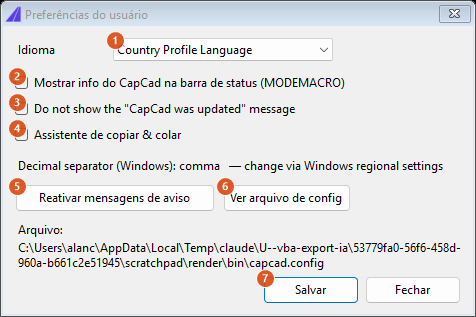
The preferences window. The path in the footer is the capcad.config of the machine the capture was taken on.
| # | Control | What it does |
|---|---|---|
| 1 | Language | The language of the CapCad interface. Three options: Country Profile Language (follows the active country profile — the default), Português and English. Picking a fixed language decouples the interface from the country: you can draw to one country's norms and read the forms in another language. |
| 2 | Show CapCad status bar info (MODEMACRO) | Turns on the CapCad line in the CAD status bar. It shows, separated by vertical bars: the two-letter country code, the project name (truncated at 20 characters), the active alignment, the style and the coordinate system. With no project or no alignment it reads no project / no alignment; in CapSign mode the whole line becomes [CAPSIGN]. The effect is immediate on save. |
| 3 | Do not show the "CapCad was updated" message | Saved with the form; not used by this version: the result of an update is reported by the updater itself when it finishes (see Account, licence and installation). |
| 4 | Copy & paste assist | Saved with the form; not used by this version. |
| 5 | Re-enable advice messages | Asks for confirmation and clears every "do not show again" mark you have accumulated in CapCad's notice boxes. The footer reports how many marks were cleared. It applies to the notices of all commands, not just this window's. |
| 6 | View config file | Opens capcad.config in Notepad. Read only; edit through the program's own screens. |
| 7 | Save | Writes the four preferences and the language, refreshes the status bar and closes. |
The Close button, to the right of Save, exits without saving.
Between the boxes and the buttons, the Decimal separator: … line reports which separator Windows is using (comma or point). It is informational only: that is a Windows regional setting, and CapCad does not change it. The footer shows the full path of the capcad.config in use.
Suggested CAD Settings — CAPCAD_CAD_DEFAULTS
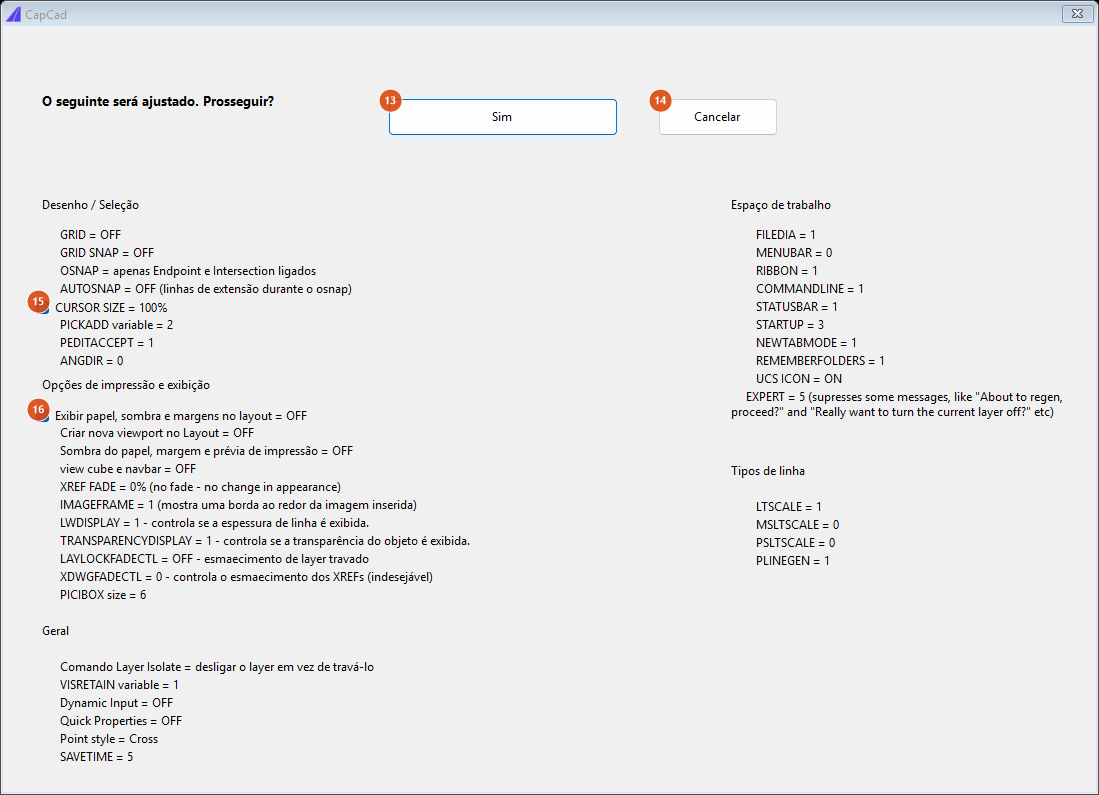
The window lists everything it will adjust, in four subject columns. Two lines of the list are tick boxes (15 and 16); the rest are just the list of what is about to happen.
The window is a preview: nothing changes until you click Yes. The header reads The following is going to be adjusted. Proceed?
| # | Control | What it does |
|---|---|---|
| 13 | Yes | Applies the configuration and closes. Each variable is applied individually and tolerantly: the ones your CAD does not know are simply skipped. On finishing, the command line writes CapCad suggested configuration applied. |
| 14 | Cancel | Closes without changing anything. |
| 15 | CURSOR SIZE = 100% | Ticked, puts the crosshair full-screen. Untick to keep the crosshair size you already use. |
| 16 | Display paper, paper shadow and margins in layout = OFF | Ticked, turns off the white sheet, the shadow and the printing margins in the layout. Untick to keep the current look of your layouts. |
What the command adjusts, by subject:
- Drafting / Selecting — grid and grid snap off; OSNAP limited to Endpoint and Intersection;
PICKADD2 (selection accumulates);PEDITACCEPT1 (PEDIT stops asking whether to convert the line);ANGDIR0; a small pick box;AUTOSNAP33 (extension lines while osnaping). - Printing & display options — no viewport created when a new layout is opened, and no plot configuration box; view cube and navigation bar off;
IMAGEFRAME1 (a border shown around an inserted image);LWDISPLAY1 andTRANSPARENCYDISPLAY1; no locked-layer fading and no XREF fading — XREF fading is what makes a referenced drawing look "washed out". - General — the Layer Isolate command switches the other layers off instead of locking them;
VISRETAIN1 (the drawing keeps layer changes made in XREFs); dynamic input and quick properties off; point style set to a cross (PDMODE3, so points are visible); autosave every 10 minutes. - Work space — file dialog boxes on (
FILEDIA1), menu bar hidden, ribbon and command line visible, status bar on,STARTUP3,NEWTABMODE1, UCS icon on,EXPERT5 (suppresses routine prompts such as "About to regen, proceed?") and the last-folder memory (REMEMBERFOLDERS1). - Line Types —
LTSCALE1,MSLTSCALEandPSLTSCALE0 andPLINEGEN1. That last one is what makes a polyline's dashes run continuously through the vertices instead of restarting at each one — indispensable for road markings.
Command shortcuts — CAPCAD_SHORTCUTS
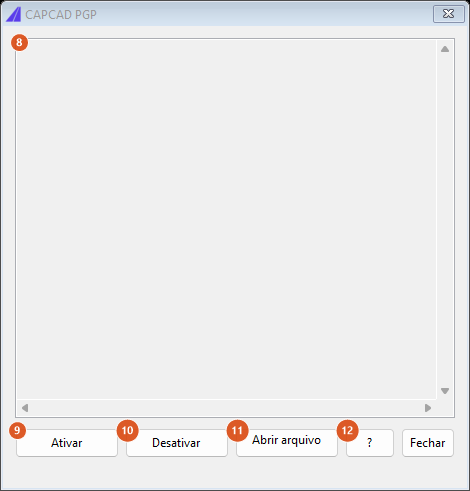
The shortcuts window. The table is empty in this capture because the command fills it from the installation's own files.
CapCad's aliases live in an alias file of its own, inside the installation's Support folder. They apply when that folder is the first on the CAD's support-path list; otherwise the CAD's own alias file wins. That ordering is what the first two buttons change.
| # | Control | What it does |
|---|---|---|
| 8 | Shortcut table | Read-only. Lists each alias and the command it fires, grouped under the section titles of the alias file (shown in capitals between ===). Each command carries a description; with none, the command name is shown. If the alias file is not found, the box shows the path it looked for. |
| 9 | Activate | Moves CapCad's Support folder to the front of the support-path list, making CapCad's aliases win. The footer confirms with Activated — takes effect next CAD session (or REINIT + PGP). |
| 10 | Deactivate | Moves the same folder to the end, giving precedence back to the CAD's own alias file. The footer reads Deactivated — takes effect next CAD session. |
| 11 | Open pgp file | Opens CapCad's alias file in Notepad. |
| 12 | ? | Explains the mechanism in a box: first position on the support-path list = CapCad's shortcuts apply; and the change only takes effect in the next session, or after REINIT. |
The Close button, to the right of the ?, exits the window.
This window is the authority for your machine. The alias set CapCad ships differs between country profiles and between CADs, so the table you see here — not any table in this manual — is what you actually have. The reference lists, and the rules that decide which file you get, are in Command shortcuts.
Screen background colour — CAPCAD_SCREEN_COLOR
Each run advances one step in the background-colour cycle, and the crosshair colour follows so it stays legible. In model space the cycle has eleven steps, from black to white and back to black, passing through the CAD's default dark grey, two mid greys and two light greys. In paper space (layout) there is no cycle: the command toggles between white and the dark grey.
If the current background is none of the tones in the cycle — because you set it by hand in the CAD options — the next run jumps straight to black and restarts the cycle from there.
The command changes the CAD's display preference, not the drawing: the colour applies to every drawing and stays after CapCad is closed.
Remembered between sessions
- The user preferences (language, status bar, notices) and the "do not show again" marks are stored with the installation — per Windows user and per installed CAD.
- The support-path order, which turns the shortcuts on and off, is stored in the CAD's own profile.
- The system variables applied by the suggested configuration and the background colour belong to the CAD: they apply to every drawing and persist without CapCad. The two tick boxes in the suggested-configuration window, by contrast, always start ticked.
Notes
- Changing the country profile also refreshes the alias file with the one matching the profile's language — and that only happens when CapCad's Support folder is first on the support path. See Command shortcuts.
- When it applies the suggested configuration, the command sends a few of the CAD's own commands (Layer Isolate, ribbon, command line, UCS icon). They run after the window closes, so it is normal to see them go by on the command line.
- Some rows of the suggested-configuration list read in Portuguese in an English session. The preferences and shortcuts windows are fully translated. The control tables above quote what the English build shows.
See also
- Command shortcuts — the alias tables, and which file yours come from.
- Account, licence and installation — version, program folder, update and repair.
- Help, learning and community — where to find each command.