| Commands | CAPCAD_REPORT_ENTITY_PALETTE · CAPCAD_REPORT_ENTITY_DASHBOARD |
| Ribbon | no button in this version — both are typed on the command line |
| Category | none |
| Windows | two dockable CAD palettes (not forms): CapCad Entities (560 × 480, minimum 380 × 240) and CapCad Entity Dashboard (420 × 640, minimum 300 × 400). Both dock left and right, and have an auto-hide button and a close button |
| Hosts | AutoCAD |
| Related pages | Entity Report (the same reading, but exportable) · Quantities Dashboard (the sibling that counts metres and square metres) |
Before checking the project, check the drawing. The two panels answer the question nobody can answer by looking at the screen: what exactly is in this file, and how much of it.
- Not a modal window. They are CAD palettes: dockable, resizable, with auto-hide — they stay open while you work.
- Click a row, select the entity. Each grid row selects the entity and, if it is off screen, zooms to it.
- One slice, a whole selection. On the chart, clicking a category selects every entity of that kind — and a button isolates them.
- Categories that mean something to a drafter. A plain block, a block with attributes and an xref are three different things, not "BlockReference" three times.
- It follows the drawing. The distribution panel refreshes itself as you draw or erase, without holding up the editing.
- Several drawings open, one selector. Switching drawing from the panel switches the CAD's active drawing and recounts.
What it does
Both palettes do the same reading — they walk the drawing's layout blocks (model space and each paper-space layout) and build one row per entity — and show the result in two ways:
CAPCAD_REPORT_ENTITY_PALETTEshows the grid: the complete list, with the columns Type, Layer, Color, Linetype, Space, Length, Area, Info and Handle.CAPCAD_REPORT_ENTITY_DASHBOARDshows the chart: a donut with the distribution by category, with count and percentage, and carries the same grid on a second tab.
Neither writes to the drawing. What they do beyond showing is select, isolate and zoom — always through the CAD's own commands.
Running the command again with the palette already open brings it back to the front and re-reads.
These two windows are not shown captured on this page. They are native CAD palettes, not forms. The figure below is drawn by the panel's own engine, with the same colours, the same angles and the same ordering it produces — all that differs from the screen is the palette frame around it.
CAPCAD_REPORT_ENTITY_PALETTE — the grid
A top bar with the Refresh button and the count, and below it the grid, read-only, one row per entity.
| Column | Content |
|---|---|
| Type | The object type. |
| Layer | The entity's layer. |
| Color | The colour, as the CAD describes it (ByLayer, an index, an RGB). |
| Linetype | The entity's linetype. |
| Space | Model or the layout name. |
| Length | The length, for curves, to three decimals. |
| Area | The area: of the curve when it is closed, of the hatch when it is a hatch. |
| Info | The extra identification: the block's effective name, the text of a Text or MText, the text of a dimension. Blank for plain geometry. |
| Handle | The entity's handle — what CAPCAD_SELECT_BY_HANDLE reads. |
Clicking a row selects the entity in the drawing and, if it is outside the current view, frames it. If the entity has been erased since the last reading, the count says so: Entity no longer in this drawing — refresh.
Refreshing is manual: only the Refresh button (or running the command again) re-reads the drawing. And the listing stops at 20,000 rows — the count stays correct and the label says the list was truncated.
CAPCAD_REPORT_ENTITY_DASHBOARD — the chart
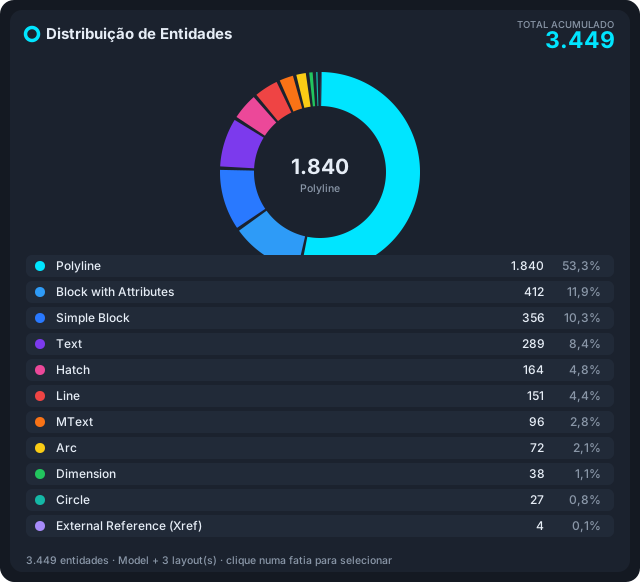
The donut and the legend as the engine produces them: slices ordered largest to smallest, colours assigned by position, angles starting at 12 o'clock and closing at exactly 360°.
About the figure. It is rendered from a Portuguese session, so its title and footer read in Portuguese. In English the same three strings are Entity Distribution, TOTAL ACCUMULATED and
3,449 entities · Model + 3 layout(s) · click a slice to select. The category names in the legend are English in every language.
The top bar
| Button | What it does |
|---|---|
| (drawing name) | Opens the list of open drawings; choosing one makes it the CAD's active drawing and recounts. |
| Isolate Selection | Isolates the entities of the chosen category (calls ISOLATEOBJECTS). With no category chosen: Pick a category first (click a slice or legend row). |
| ⚙ Options | The menu described below. |
| Show all | Undoes the isolation (UNISOLATEOBJECTS). |
| Zoom to the selection | Frames the entities of the chosen category. With no category, zooms to the drawing extents. |
| Refresh | Re-reads. |
The options menu
| Item | What it does |
|---|---|
| Auto refresh | On by default. With it, the panel rebuilds itself when entities are created or erased, doing one re-read after 400 ms of silence — a batch operation does not make it recompute a thousand times. While the palette is hidden, nothing is recomputed. |
| Model space only | Off by default. On, the paper-space layouts stay out of the count. |
| Chart colours | Six palettes for the slices: Classic, Viridis, Sunset, Pastel, Colour-blind safe and Mono blue. The choice is saved and applies to all CapCad panels. |
| Interface colours | Five themes for the palette itself: Dark (default), Midnight, Graphite, Steel and Light. Also saved and shared. |
The card
The header carries the title Entity Distribution and, on the right, the TOTAL ACCUMULATED. On narrow palettes (under 300 px) the total drops below the title instead of competing with it for width.
Below, two tabs:
Chart — the donut and the legend. Each legend row carries the slice colour, the category name, the count and the percentage. Clicking a slice or a legend row selects every entity of that category in the drawing and writes N × Category selected on the footer; clicking again clears the selection. The centre of the donut shows the count and the name of the chosen category.
Entities — the same grid as the other palette, with a Search… field and a chip showing the filtered category (with a ✕ to remove it). The search is case-insensitive over Type, Layer, Info, Handle, Linetype and Space; the counter on the right shows how many rows passed out of how many. Clicking a row selects and frames the entity, as in the grid.
This second tab is filled on demand: the chart's count is made on every re-read, but the detail sweep (length, area, identification) only runs while the tab is in view. The limit here is 100,000 rows.
The footer shows the state: 3,449 entities · Model + 3 layout(s) · click a slice to select.
The categories
The panel does not show the CAD class name: it translates each entity into a reading category. Three of them depend on more than the type:
| Category | What goes in |
|---|---|
| Simple Block | A block reference with no attributes that is not an xref. |
| Block with Attributes | A block reference with attributes. |
| External Reference (Xref) | A block reference whose definition is an external reference (attached or overlaid). |
| Polyline | Lightweight and 2D polylines. |
| 3D Polyline | 3D polylines, counted apart. |
| Line, Circle, Arc, Ellipse, Spline, Point | Basic geometry. |
| Text, MText | Text, split by type. |
| Dimension | Any dimension — every variant falls into one category. |
| Leader | Simple and multileaders. |
| Hatch, 2D Solid, 3D Solid, Region | Fills and solids. |
| Viewport, Table, Image, Wipeout | Sheet and image objects. |
| Attribute Definition | Attribute definitions (the ones inside blocks, seen in model space). |
| Proxy Object | Objects from applications that are not installed — the sign that the drawing arrived carrying data this CAD cannot open. |
Any other type comes in under its own CAD class name without the AcDb prefix.
Remembered between sessions
- The CAD palette keeps its position, size and docking state, like any native palette.
- The chart colour palette and the interface theme are written to the CapCad configuration and apply to every panel.
- Auto refresh and Model space only are not saved: they return to on and off respectively each session.
- The chosen category and the search text are not saved either.
Notes
- Neither command has a ribbon button in this version. Type the name, or make a shortcut.
- The two palettes partly overlap. The Entities tab of the distribution panel shows exactly the grid of
CAPCAD_REPORT_ENTITY_PALETTE, with one difference: on the tab the Type column carries the category (Simple Block, Block with Attributes…), while on the palette it carries the object type. If you only want the list, use the palette; if you want the proportion, use the panel. - The grid of
CAPCAD_REPORT_ENTITY_PALETTEdoes not refresh itself. Only the distribution panel has auto refresh. - The isolation is the CAD's. Isolate Selection and Show all call
ISOLATEOBJECTSandUNISOLATEOBJECTS: closing the palette does not undo the isolation. Use Show all before you leave. - Selecting a very large category is a very large selection. Clicking the polylines slice of a big drawing puts tens of thousands of entities into the CAD's implied selection.
- The reading can go stale. Entities erased after the reading are discarded when it is time to act, and the footer says Entities no longer in this drawing — refresh.
- To take the list away with you, use the Entity Report. The palettes export nothing: there is no copy, save or send-to-Excel button.
- AutoCAD only. Neither command is registered on the other CADs.
- These windows are not shown captured on this page because they are CAD palettes, not forms. The donut figure comes from the panel's real engine.