| Commands | CAPCAD_LAYER_ASSISTANT and CAPCAD_LAYER_ASSISTANT_GENERAL (Drawing Standards) · CAPCAD_LAYER_MANAGER (Layer Tools) · CAPCAD_LAYER_UNLOCK_ALL (unlock everything) |
| Shortcuts | none. The LU in acad.pgp is the CAD's own LAYULK, not this command |
| Ribbon | CAPCAD_LAYER_ASSISTANT: CapCad tab › Manage panel › Layer Assistant. CAPCAD_LAYER_ASSISTANT_GENERAL: Road panel › Layers Gerais. CAPCAD_LAYER_MANAGER and CAPCAD_LAYER_UNLOCK_ALL: CAD Utilities panel › Draw & Modify split button › Layer Tools and Unlock all layers |
| Category | Manage: style (the two assistants) |
| Forms | DrawingStandardsForm — Drawing Standards (modeless, two tabs) · LayerToolsForm — Layer Tools (modal) |
| Hosts | CAPCAD_LAYER_MANAGER and CAPCAD_LAYER_UNLOCK_ALL: AutoCAD, BricsCAD, GstarCAD, ZWCAD and ARES Commander. CAPCAD_LAYER_ASSISTANT and CAPCAD_LAYER_ASSISTANT_GENERAL: AutoCAD only (on ARES they report themselves as coming soon) |
CapCad's layer catalogue is too large to memorise — these commands show it already resolved by the project's style, and create in the drawing only what you choose. Instead of typing layer names and hoping the colour is right, you read the finished list and click.
- The list is the truth of the moment. Each row shows the internal role and, beside it, the name, colour, linetype and plot flag the active style resolved for it.
- Listing does not touch the drawing. The read is done in "do not create" mode: nothing is written until you press a create button.
- You decide whether it overwrites. Redefine layers if different separates "create if missing" from "create and reapply colour, linetype and plot flag" — the difference between respecting and redoing what is already in the drawing.
- Filter on any column. One string in the filter sweeps the variable, the layer name and the description at the same time.
- Heavy cleaning in one click. The eraser sweeps model space and removes the entities sitting on layers that are off or frozen — including locked ones, which it unlocks first.
- Bulk conversion, in text. A block of
old=newlines relabels the whole drawing without going through any CAD dialog.
Two windows, different jobs
Drawing Standards is the catalogue's shop window: it shows the layer roles and creates the ones you want, with the properties the active style dictated. It is the window for starting a drawing to the right standard.
Layer Tools is the cleaning: it deletes hidden content, copies a layer name and converts layers in bulk. It is the window for fixing a drawing that already exists — including one that came from outside.
Neither depends on an alignment or on an active project; both depend on the style, because it is the style that resolves the names and the colours.
Drawing Standards
CAPCAD_LAYER_ASSISTANT opens the wide window; CAPCAD_LAYER_ASSISTANT_GENERAL opens the same window narrow. That is the only difference between the two commands: there is one window, modeless and single — running the other command while it is open only resizes it and brings it to the front.
| Command | Width | What shows |
|---|---|---|
CAPCAD_LAYER_ASSISTANT |
wide | Every column, both create buttons, both option boxes and the Style in use label |
CAPCAD_LAYER_ASSISTANT_GENERAL |
narrow | Only the Variável CapCad column; the create buttons are hidden |
The → / ← button (11) switches between the two widths at any time, so nothing is out of reach: the command only chooses which width the window opens with.
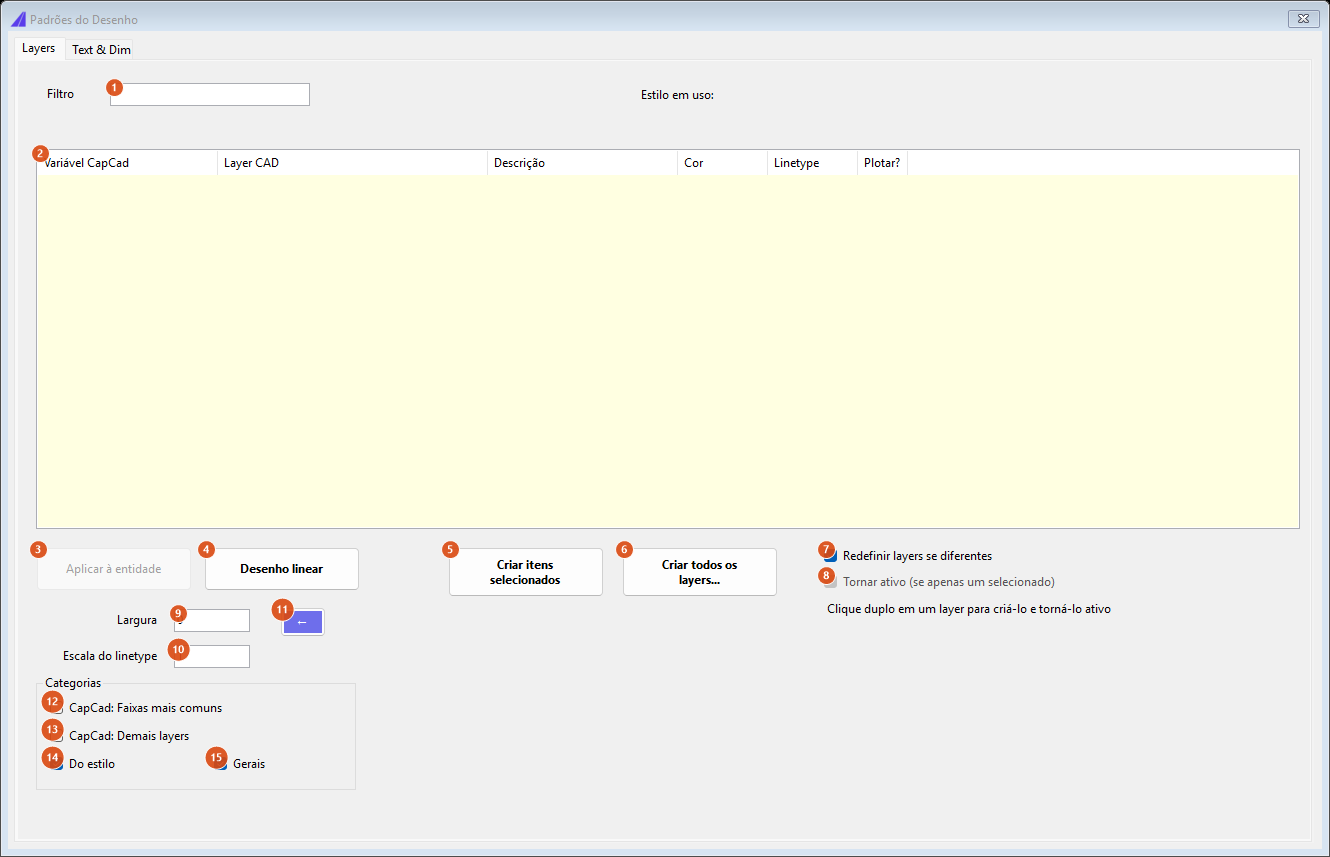
The screenshots on this page are of a Portuguese session; the numbering is the same in both editions, and the tables give the English captions.
Controls
| # | Control | What it does |
|---|---|---|
| 1 | Filter | Free text. The list rebuilds on every keystroke and shows the rows where the text appears in the variable, in the CAD layer name or in the description, case-insensitively. Empty shows everything |
| 2 | The list | One row per catalogue role. Multiple selection. Double-clicking a row creates the layer and — if (8) is ticked — makes it current |
| 3 | Apply to entity | Not available in this version. It only enables with exactly one row selected, and when clicked it says so |
| 4 | Linear draw | Not available in this version. It warns and draws nothing |
| 5 | Create Selected Items | Creates (or updates) in the drawing the layers of the selected rows, from the catalogue |
| 6 | Create All Layers… | Creates the layers of every visible row — that is, whatever the filter left on screen, not the whole catalogue. It asks first, saying how many there are |
| 7 | Redefine layers if different | Ticked (the default): create and redefine — an existing layer has its colour, linetype, lineweight, transparency, description and plot flag reapplied. Unticked: create without redefining — an existing layer is only thawed and turned on, and the rest is left alone |
| 8 | Make Active (if only one selected) | Only has an effect on the double click on a row; buttons (5) and (6) never change the current layer. Enabled only with one row selected |
| 9 | Width | Feeds only buttons (3) and (4); not used by this version |
| 10 | Linetype scale | Likewise: it serves only (3) and (4) |
| 11 | → / ← | Switches narrow ↔ wide. The arrow points → when the window is narrow and ← when it is wide |
| 12 | CapCad: Faixas mais comuns | Not available in this version: the list is not filtered by category |
| 13 | CapCad: Demais layers | Not available in this version |
| 14 | Do estilo | Not available in this version |
| 15 | Gerais | Not available in this version |
The Style in use: label (wide mode only, to the right of the filter) shows the name of the style that resolved the list; with no style set, it shows capcad.default.
The columns of the list
| Column | What it is |
|---|---|
| Variável CapCad | The internal role — the key the commands use, for example SINA_HOR_BR_ZPA. It does not change with the style or with the country |
| Layer CAD | The name the layer will have in the drawing, with the renaming, the translation into the country profile's language and the style's prefix already applied |
| Description | The description the catalogue writes onto the layer |
| Colour | The RGB, when the role defines a true colour; otherwise the ACI index |
| Linetype | The resolved linetype, or Continuous when the role defines none |
| Plot? | yes / no — several helper roles are born unplottable on purpose |
The list carries the roles the catalogue resolves on its own, from the creation action alone: 156 of 187. The remaining 31 describe a family, not a layer — they need a suffix, a complement or a feature name to exist (GIS_, SUFFIX_IMP, CAPSIGN_TEXT_, ALIGNMENT_CURVAS_, EIXO_PREFIX_, DEFENSA_TERMINAL…) — and so they do not appear.
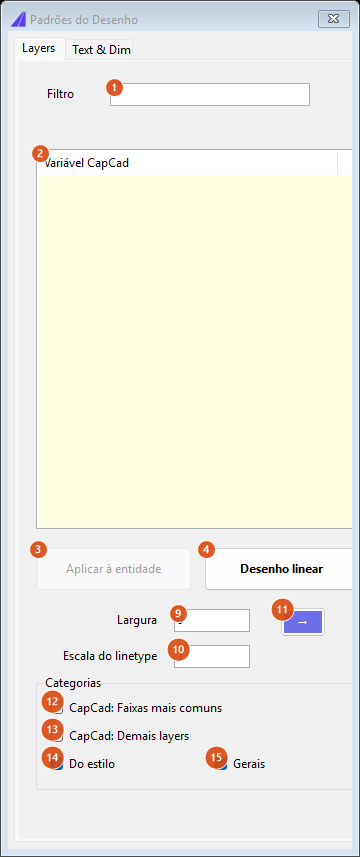
The Text & Dim tab (text and dimension standards) is not available in this version; the tab says so.
Workflow
- Set the project's style first — it is the style that decides the names and colours the list will show.
- Run
CAPCAD_LAYER_ASSISTANT. - Type in the Filter (1) what you are after:
ZPA,SINA_VERT,DEFENSA,zebrado… - Select the rows you want (Ctrl and Shift work) and click Create Selected Items (5). To create everything the filter left on screen, use Create All Layers… (6) and confirm.
- To work on one specific layer, double-click it: the layer is created and becomes current.
The command line reports how many layers were created or updated.
Layer Tools
CAPCAD_LAYER_MANAGER opens a modal window with three independent tools.
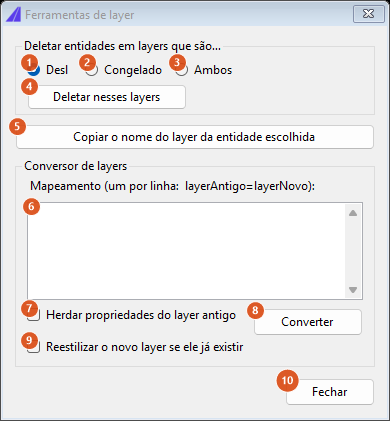
| # | Control | What it does |
|---|---|---|
| 1 | Off | Eraser target: layers that are off. This is the initial choice |
| 2 | Frozen | Target: frozen layers |
| 3 | Both | Target: off or frozen |
| 4 | Delete on those layers | Deletes the entities of model space sitting on the chosen layers. Locked layers that fall in the target are unlocked first. The footer reports how many entities and how many layers — or warns that no layer matched |
| 5 | Copy a picked entity's layer name to clipboard | Hides the window, asks for an entity in the drawing and copies its layer name to the clipboard. The footer shows the copied name |
| 6 | Mapping (one per line: oldLayer=newLayer): | The converter's text: one line per pair |
| 7 | Inherit properties from the old layer | Not used by this version |
| 8 | Convert | Runs the mapping |
| 9 | Restyle the new layer if it already exists | Not used by this version |
| 10 | Close | Closes the window. The three tools have already acted on the drawing; there is no "cancel" |
Deleting the contents of hidden layers
This is the classic clean-up of a drawing received from a third party: what is off or frozen is usually the remains of old versions, but it still weighs on the file and reappears the moment someone turns the layer on.
Two things the command does not do, worth knowing:
- it does not delete the layer, only what is inside it — run the CAD's PURGE afterwards if you want the empty layers gone;
- it unlocks the layers that fall in the target and does not lock them back at the end.
Copying the layer name
This exists precisely to feed the converter just below: click an entity and paste the name into the left-hand column of the mapping.
The layer converter
Each line of field (6) is a pair. The preferred separator is =; if the line has no =, the command accepts a tab and, last, a comma — which lets you paste two columns straight out of a spreadsheet. The old name is compared case-insensitively; blank lines and lines with no separator are ignored.
OLD_MARKINGS=SINA_HOR_BR_LMS2
YELLOW LINES=SINA_HOR_AM_LFO3
OLD CENTRELINE=EIXO
Before moving any entity, the command creates every destination layer. It then walks model space and swaps the layer of every entity whose current name is in the left-hand column. The footer reports how many entities changed and how many pairs were used.
The name you type counts as typed. This is one of the documented exceptions to the layer catalogue: the destination layer is created under the name you wrote, not resolved through the catalogue. Writing
SINA_HOR_BR_ZPAhere creates a layer with that name, but without the colour, linetype and plot flag the role would carry — and without the style's prefix. To get the right layer with the right properties, create it first in Drawing Standards and then convert to the name shown there in the Layer CAD column.
Unlocking every layer
CAPCAD_LAYER_UNLOCK_ALL opens no window and asks for no selection: it unlocks every locked layer of the drawing, including 0, and reports on the command line how many were unlocked. It does not turn on layers that are off and it thaws nothing — a lock is only a lock.
Remembered between sessions
Nothing. Neither window writes its options to the preferences: the filter comes back empty, Redefine layers if different and Make Active come back ticked, the eraser target comes back to Off and the mapping field comes back empty on every run.
Notes
- Model space only. Both the eraser and the converter walk model space alone. Entities in paper space, inside block definitions or inside xrefs are not touched.
- Six boxes are not available in this version. The four category boxes (12 to 15) filter nothing, and Inherit properties and Restyle do not influence the conversion.
- One invalid layer name brings down the whole conversion. The command strips forbidden characters when creating the layer, but assigns to the entities the name as you typed it — so a
<, a*or a colon in the destination makes the conversion fail as a block, with the error in the footer. Use names the CAD accepts. - Creating is not the same as redefining. With (7) unticked, a layer that already exists in the drawing is only thawed and turned on; properties someone tuned by hand are preserved. That is the safe mode for third-party drawings.
- Four captions are not translated. The Categorias group box and its four boxes (12 to 15) show in Portuguese in every language, as do the Variável CapCad and Layer CAD column headers.
- Only the double click makes the layer current. That is the hint written on the window itself; the Make Active box does not change what the two create buttons do.
See also
- Linetypes — the other side of a layer's appearance: loading, creating and identifying dash patterns.
- CapStyle Editor — the editor's Layers tab and the QA: compare with DWG check.