| Commands | CAPCAD (restore the ribbon) · CAPCAD_BETA (diagnostic switch) · CAPCAD_DISENAL (load the Chilean Diseñal add-on) · CAPCAD_3D_SIGN_CHECK, CAPCAD_ANALYTICS_SIGN_POST_HEIGHT, CAPCAD_DEVICE_TRAFFIC_LIGHT and CAPCAD_MARKING_AREA_ASSISTANT (open a form already positioned) |
| Shortcuts | none of the seven has an alias in the CapCad pgp file |
| Ribbon | CAPCAD has no button — it is meant to be typed when the ribbon is gone. CAPCAD_BETA: CapCad panel › System split button › CapBeta. CAPCAD_3D_SIGN_CHECK: 3D panel › Vertical 3D Tools. CAPCAD_ANALYTICS_SIGN_POST_HEIGHT: Project panel › Analytics split button › Road Signs: Post Height. CAPCAD_DEVICE_TRAFFIC_LIGHT: Roadway panel › Library split button › Traffic Signals. CAPCAD_DISENAL and CAPCAD_MARKING_AREA_ASSISTANT have no button outside the Spanish-America and Brazilian ribbons — type them |
| Category | CAD Utils: Segment (CAPCAD) · Command Line Command Versions (CAPCAD_DISENAL) · Vertical (CAPCAD_ANALYTICS_SIGN_POST_HEIGHT, CAPCAD_DEVICE_TRAFFIC_LIGHT) · none (CAPCAD_BETA) · NEW (CAPCAD_3D_SIGN_CHECK, CAPCAD_MARKING_AREA_ASSISTANT) |
| Forms | CAPCAD, CAPCAD_BETA and CAPCAD_DISENAL have no form. The other four open forms that already exist — ChecaPlacaForm, VerticalManageForm, ItemInsertForm and the area-marking family |
| Hosts | Six of them AutoCAD only — on ARES Commander they exist as coming soon, and on BricsCAD, GstarCAD and ZWCAD they are not registered. The exception is CAPCAD_ANALYTICS_SIGN_POST_HEIGHT, which is real on all five |
| Licence | they pass the same licence gate as every other command |
Not every CapCad command draws. Seven of them only put you somewhere: back on the ribbon, in diagnostic mode, inside another vendor's add-on, or on the exact tab of the form you need.
- The ribbon comes back with one word. If the CapCad tab has vanished,
CAPCADreloads the active profile's menu without restarting the CAD. - One door per task. Post height, sign 3D, traffic signals: each opens the form that already exists, straight on the right page, instead of making you hunt for the tab.
- The assistant picks the area marking for you. Select the geometry and CapCad decides whether it is 1 side, 2 flows, 3 flows or a filled area — and opens the form with the reference lines already loaded.
- Without leaving the CAD. A third-party signing add-on is loaded and run from inside CapCad, or the command offers its manual when it is not installed.
- One diagnostic switch.
CAPCAD_BETAturns the diagnostic mode on and off — and says on the command line which mode the session is in.
CAPCAD — bring the ribbon back
This is the rescue command: when the CapCad tab disappears from the ribbon, type CAPCAD on the command line.
What it does, in this order:
- Runs
RIBBON, which shows the CAD's own ribbon again if it was hidden. - Picks the menu file from the product language: the Brazilian menu in a Brazilian profile, the Spanish-America menu in a Spanish one, and the generic English menu in every other case.
- Looks for that file in the CapCad installation folder and loads it with
CUILOAD. - If the file is not there, it writes
<name>.cuix not found in <folder>on the command line and loads nothing.
No CAD restart is needed, and the command has no ribbon button — for the obvious reason that the ribbon is exactly what is missing when you need it.
Three things to know:
- It does not unload the previous menu. The
CUILOADis done on top of whatever is already loaded. If the CapCad menu group is still in the session, you can end up with two CapCad tabs. UseCUIUNLOADto drop the duplicate, or restart the CAD. - Only three menu files are reachable this way. A UK menu and an airport menu are also distributed, but this command decides by language, not by country: a UK profile reloads the generic English menu. To get your country's ribbon back, switch profile with
CAPCAD_COUNTRY_STANDARDS, which loads the correct menu. - The right ribbon also comes back on its own at the next CAD start after a profile switch, because activation rewrites the auto-load file.
See also the Troubleshooting guide, item 9.
CAPCAD_BETA — the diagnostic switch
CAPCAD_BETA is a diagnostic session switch, not a design feature. It toggles a session mode that CapCad support may ask you to change.
| State | What the command line answers | What happens |
|---|---|---|
| Legacy ON (default) | CapCad LEGACY ON - commands run their original (VBA) version where it exists. | Every command runs normally |
| Legacy OFF | CapCad LEGACY OFF - commands run the new engine; not-yet-migrated commands show a notice. | Every command runs normally |
Each run flips the state, which lasts only for the CAD session: close and reopen and you are back on the default.
Flipping the switch changes nothing in how the commands run. It stays in the product because it is the diagnostic path support uses, and because the recorded mode goes into the error report and into CAPCAD_DIAGNOSE.
Who it is for: CapCad support, and a diagnostic session they are running with you. It is not a working mode, it does not change any drawing result, and it should not be part of anyone's routine.
Two neighbouring commands:
CAPDEV_MIGRATION_STATUSopens a text window with a diagnostic listing of the commands, for support. It does not flip the switch.CAPCAD_LEGACYis not a command: typing it returns unknown command. The name that works isCAPCAD_BETA.
The ribbon button is the small unlabelled one inside the System split button; its tooltip reads CapBeta in the English menu and CapCad Beta in the Brazilian one.
CAPCAD_DISENAL — load the Diseñal add-on
Diseñal is the Chilean road-signing application, distributed by a third party. CAPCAD_DISENAL loads that application into the running CAD and calls its DISENAL command.
How the command decides which file to load:
- Reads the CAD version (
ACADVER) and converts it into a release year. - Converts the year into a version band, the suffix used in the Diseñal file names:
2010_2012,2013_2014,2015_2016,2017_2018,2019_2020and2021_2022. Any CAD from 2021 onwards falls in the last band. - Looks in the CapCad installation folder for the Diseñal file of that band; failing that, accepts any Diseñal file it finds there.
- On a hit, loads that file into the CAD and runs the
DISENALcommand.
If nothing is found, the message Diseñal not properly installed or in an unsupported location appears, naming the file it looked for. Answering "No" opens the Chilean signing manual in the browser; answering "Yes" just closes the box. That is the intended logic — "Yes" confirms you already know about it and do not want the website.
Notes:
- The button only exists on the Spanish-America ribbon (Señalización Vertical panel, CapSign split button). It is on neither the English nor the Brazilian ribbon; the command is still typeable.
- The messages are in English, in every language of the product.
- CapCad does not distribute Diseñal. It has to be installed in the same folder as CapCad.
Other doors into forms that already exist
The four commands below have no form of their own: they open a form documented elsewhere, with the tab, the category or the geometry already chosen. They exist because that choice is the work — there is no point asking you to open the form and then hunt for the tab.
| Command | Opens | Already positioned on |
|---|---|---|
CAPCAD_3D_SIGN_CHECK |
Validate and publish sign — see the sign-correction page | the 3D tab |
CAPCAD_ANALYTICS_SIGN_POST_HEIGHT |
Road Signs Management — see the sign-management page | the Post height tab, with the terrain already loaded |
CAPCAD_DEVICE_TRAFFIC_LIGHT |
Dwg Library — see the road-library page | the traffic-signals category |
CAPCAD_MARKING_AREA_ASSISTANT |
the area-marking form your selection asks for | with the reference lines already loaded |
In every case the form is one per session: if it is already open, the command only changes the tab (or the category) and brings the window to the front, keeping whatever you had filled in.
CAPCAD_ANALYTICS_SIGN_POST_HEIGHT — post height
Opens Road Signs Management straight on the Post height tab, and does one thing CAPCAD_SIGN_MANAGE does not: it loads the terrain before opening. If the drawing has a surface named in its configuration (a LandXML file), it is read and made available for the embedment and clearance calculation. Open the form with CAPCAD_SIGN_MANAGE and switch tabs by hand and the surface is not loaded.
It is the only one of the four that also runs on BricsCAD, GstarCAD and ZWCAD.
CAPCAD_DEVICE_TRAFFIC_LIGHT — the traffic-signal library
Opens the Dwg Library with the traffic-signals category already selected, so you can insert signal heads, poles and mast arms without going through the category list.
The pre-selection is made by exact category name, and the categories are the folders of the block library. The name it looks for is SEMAFÓRICA, so outside a Portuguese library the pre-selection does not happen and the form opens on no category at all.
CAPCAD_MARKING_AREA_ASSISTANT — the area-marking assistant
This is the only one of the four that decides anything. You select the geometry first, and the command chooses which area-marking form to open, handing it the legs it identified.
The rules, exactly as the command applies them:
| Selection | Goes to |
|---|---|
| 1 closed entity with 4 vertices | Area Marking, 3 Flows — three of the four sides become the legs |
| 1 entity with 3 vertices | Area Marking, 2 Flows — the two segments become the legs |
| 1 entity with 2 vertices (a straight line) | asks 1 side or Linear: Yes opens Area Marking, 1 Flow, No opens Linear Chevron |
| 1 entity of any other shape | the filled area marking — the entity is treated as the area outline |
| 2 open entities | Area Marking, 2 Flows |
| 3 entities that touch | Area Marking, 3 Flows |
| 3 entities that do not touch | refused: the three geometries must share their end points |
| 4 entities or more, or nothing selected | refused: the assistant could not determine the marking |
Details that change the outcome:
- It counts vertices, not segments. An open polyline with four or more vertices — even one that looks exactly like two legs of a chevron — falls into the "any other shape" rule and is treated as an area. For the 2-flow marking, select the two lines separately, or draw the reference with exactly three vertices.
- Before counting, the entity is normalised anticlockwise, so vertex order does not depend on how you drew it.
- With two entities, both must be open. If one of them is closed the assistant refuses, two entities or not.
- When the selection is two lines that do not share an end point, the 2-flow form still opens, with a warning that the vertex order will be used as the reference instead of the common vertex.
- The refusal is an OK box. No rules page is opened; read the area-marking pages listed above.
- A closed 4-vertex entity always becomes 3 flows, never a filled area. To hatch the inside of a closed quadrilateral, run the filled area-marking command directly.
- The button for this command sits on the Portuguese-labelled road-marking panel only (Zebrados split button › Assistente Zebrinha!). On the English ribbon, type the command name.
CAPCAD_3D_SIGN_CHECK — the 3D tab of sign validation
Opens the Validate and publish sign form — the same one CAPCAD_SIGN_FILL opens — already on the 3D tab. This tab is about the three-dimensional sign drawing: turning a sign drawn from hatches into a solid, saving it into the project's sign folder, and opening samples.
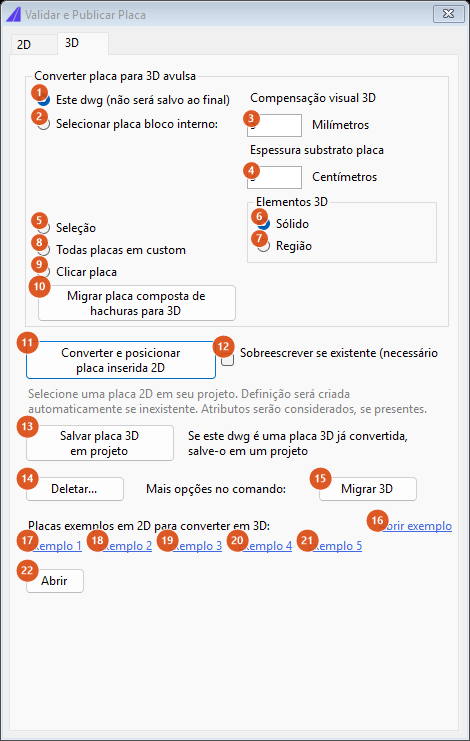
The 3D tab. The 2D tab belongs to CAPCAD_SIGN_FILL and is described on the sign-correction page. The capture is from a Portuguese session; the control numbers are the same in every language.
Convert sign to standalone 3D
| # | Control | What it does |
|---|---|---|
| 1 | This dwg (not saved at the end) | Converts the sign in the current drawing. Selected when the form opens. |
| 2 | Select an internal-block sign: | Converts a block definition chosen in the list beside it. |
| 3 | 3D visual compensation (millimetres) | Clearance in millimetres between the layers of the solid, so the faces do not fight in rendering. Default 5. |
| 4 | Sign substrate thickness (centimetres) | Plate thickness. Default 3. |
| 5 | Selection | Converts whatever is selected in the drawing. |
| 6 | Solid | The generated element is a 3D solid. Selected by default. |
| 7 | Region | The generated element is a region. |
| 8 | All signs in custom | Converts every sign in the project's custom-signs folder. |
| 9 | Click a sign | Converts the sign you point at in the drawing. |
| 10 | Migrate a hatch-built sign to 3D | Runs the conversion chosen in 1–9. Not available in this version: the button answers with a notice. |
| 11 | Convert and place an inserted 2D sign | Replaces an already-inserted 2D sign with its 3D version, in place. Not available in this version. |
| 12 | Overwrite if present | Marks an existing 3D definition for replacement. Not used by this version. |
Save and samples
| # | Control | What it does |
|---|---|---|
| 13 | Save the 3D sign in the project | Saves the current drawing into the project's proposed-signs folder, with the suffix -3D on the name. Refuses when there is no active project, when the folder does not exist, when the name already ends in -3D, and when the destination file already exists. |
| 14 | Delete... | Deletes the 3D definition. Not available in this version. |
| 15 | Migrate 3D | Not available in this version. |
| 16 | Open sample | Downloads and opens the 3D sign sample drawing. |
| 17–21 | Sample 1 to Sample 5 | Download and open the five sample drawings of hatch-built signs, the starting material for the conversion. |
| 22 | Open | Opens the project's proposed-signs folder in Explorer. |
The samples are downloaded from the CapCad server the first time and reused afterwards; with no connection, the button reports that the download failed.
Clicking 10, 11 or 14 raises a notice: the conversion is not available in this version.
Notes
CAPCADis not the command that installs CapCad. It only reloads the menu. Installation and first use are in Introduction.- Changing country is a different command.
CAPCAD_COUNTRY_STANDARDSchanges norms, layers, library, language and ribbon in one step. - On ARES Commander six of these commands answer "…is not yet available in ARES (coming soon)".
CAPCAD_ANALYTICS_SIGN_POST_HEIGHTis the exception: it is real there, and on BricsCAD, GstarCAD and ZWCAD too. - None of these commands has a keyboard alias. The aliases that exist point at the commands that do the work:
VAfor sign validation,A1/A3/AAfor the area markings. See Command shortcuts.
See also
- Introduction — the ribbon, the installation and the shortcuts.
- Troubleshooting guide — what to do when the ribbon disappears.
- Command shortcuts — the alias tables, per language file and per host.